Add a favicon in minutes — the HTML method plus WordPress, Shopify, and Wix steps, and why it's not showing.
To add a favicon: generate the icon files, upload them to your site, and add the <link rel="icon"> tags to your HTML <head>. On WordPress, Shopify, and Wix there's usually a built-in "site icon" upload that handles this for you automatically. Here's every method in detail, plus exactly how to fix a favicon that won't show.
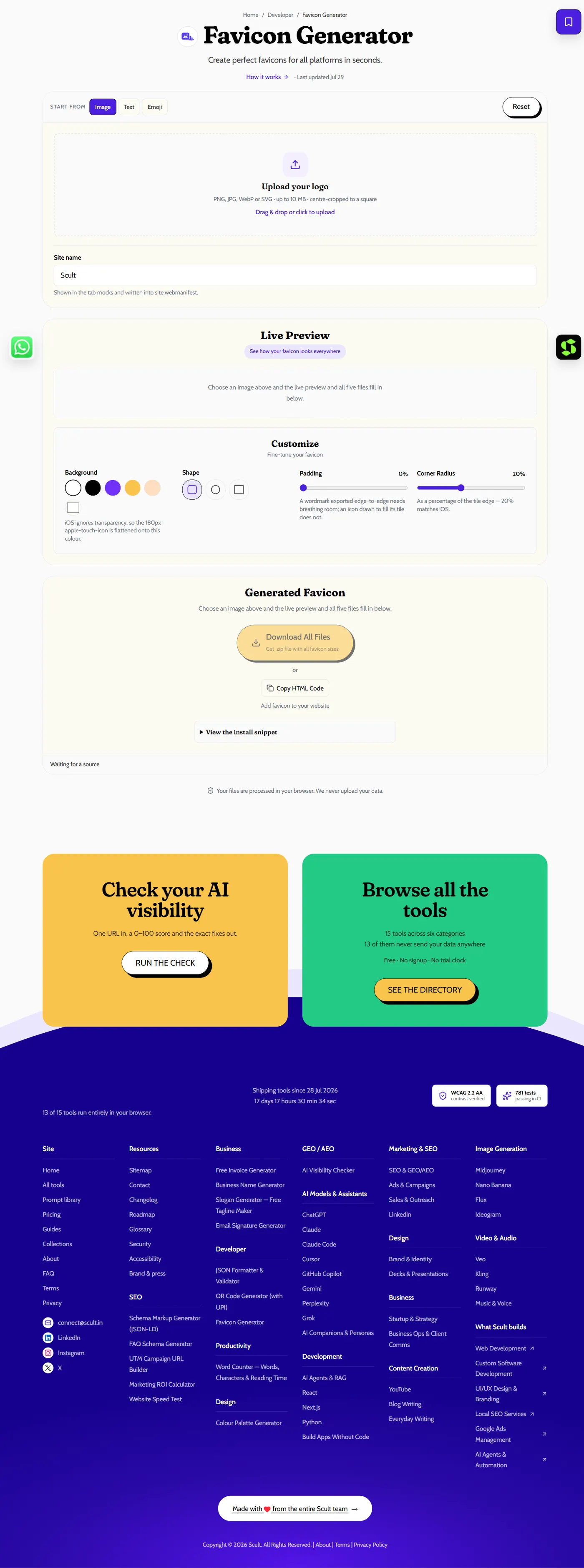
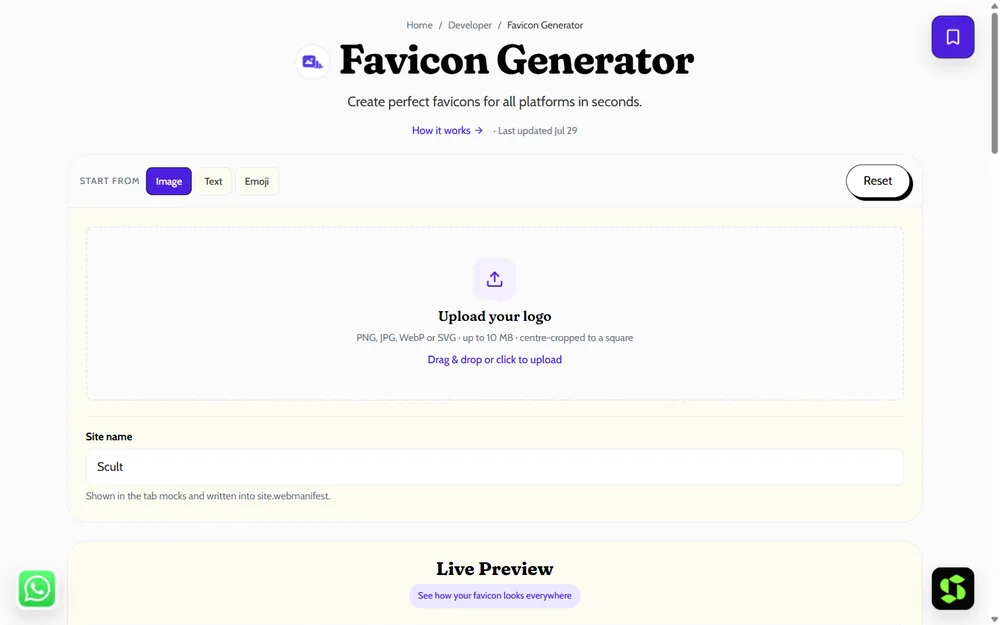
The Favicon Generator: upload a logo — or start from text or an emoji — and get a live preview of how it looks across browser tabs and devices.
Who This Guide Is For
Whether you're adding a favicon to a brand-new site for the very first time, fixing one that's mysteriously stopped working, or standardizing favicons across several sites you manage, the same core steps apply. What differs is mainly Step 4 — which specific platform method you use — and whether you're troubleshooting an existing setup (Step 5 and the troubleshooting sections below) or starting completely from scratch.
Why the Method Differs by Platform
Every website ultimately needs the same underlying favicon files referenced correctly in its HTML, but how you get there differs depending on whether you're hand-coding a site, using a platform like WordPress with direct HTML access, or working within a hosted builder like Shopify or Wix that abstracts the underlying code away entirely. Knowing which category your site falls into upfront saves time — there's no need to hunt for an HTML <head> tag to edit if your specific platform already provides a simple upload field that handles the technical details for you.
Step 1: Generate the Favicon Files
Create a complete set — ICO, PNGs at multiple sizes, and an SVG — using the free favicon generator. It also produces the exact HTML tags you'll need for the manual method below, so you don't have to write them from scratch or guess at the correct attributes. See favicon sizes and formats if you want to understand exactly what each generated file is for before uploading anything.
Step 2: Upload the Files to Your Site
Upload the generated files to your site's root directory (for a hand-coded or custom-built site) or to wherever your specific platform's media/asset area expects them. Getting the file location right matters here specifically — a correctly written HTML tag pointing at the wrong file path is one of the most common reasons a favicon fails to display even though every other step was done correctly.
Step 3: Add the HTML Tags (For Hand-Coded or Custom Sites)
If you have direct access to your site's HTML, paste the following into your page's <head> section, adjusting file paths to match wherever you uploaded them:
<link rel="icon" href="/favicon.ico" sizes="32x32">
<link rel="icon" href="/icon.svg" type="image/svg+xml">
<link rel="apple-touch-icon" href="/apple-touch-icon.png">
<link rel="manifest" href="/site.webmanifest">
Each tag serves a distinct purpose: the first two cover the standard browser tab icon (with a fallback for browsers that don't support SVG), the third covers the iOS home-screen icon, and the fourth links to a manifest file used for Android and Progressive Web App icon handling.
Step 4: Use Your Platform's Built-In Uploader Instead, If Available
Most modern website platforms provide a dedicated favicon or "site icon" upload field, removing the need to touch HTML at all:
WordPress
Go to Appearance → Customize → Site Identity → Site Icon, then upload your image — WordPress automatically generates and serves the different sizes it needs from that single upload. ⚠️CHECK this exact menu path against your specific WordPress version and theme, since some themes customize the admin interface.
Shopify
Go to Online Store → Themes → Customize → Theme settings → Favicon, then upload your image. ⚠️CHECK this path against your specific Shopify theme, since some themes place favicon settings in a slightly different location within theme settings.
Wix and Other Site Builders
Look for a "Favicon" or "Site icon" option within your site's general settings — most modern builders (Wix, Squarespace, and others) provide a similar dedicated upload field, though the exact menu label and location varies by platform.
Step 5: Verify Your Favicon Is Actually Showing
Once uploaded, open your site in a fresh, private/incognito browser window (this avoids any caching from your regular browsing session) and check that the icon appears correctly in the tab. Check on both desktop and mobile, and if possible, test saving the site to a phone's home screen to confirm the Apple touch icon variant displays correctly too — these are technically separate files from the standard tab favicon and can fail independently even when the main favicon works fine.
Why Your Favicon Isn't Showing: The Common Causes
- Browser cache — favicons are cached unusually aggressively by most browsers, meaning a genuinely fixed favicon can still appear broken or outdated in a browser tab you already had open. Clear your cache or do a hard refresh (commonly Ctrl+Shift+R or Cmd+Shift+R) before assuming something's still wrong.
- Wrong file path — confirm the file actually exists at the exact location your HTML tag (or platform's internal reference) points to; a typo in the path is one of the most common and easiest-to-miss mistakes.
- File not actually deployed — especially relevant if you're using a build process or a staging/production split; confirm the favicon files were included in whatever was actually pushed live, not just present in your local development environment.
- Search engines take time to update — even after a genuinely fixed favicon is live, Google's cached version in search results can take days to weeks to refresh, so don't assume something's broken just because an old icon still shows up in a past search result.
- Incorrect MIME type or file corruption — rare, but an improperly exported or corrupted icon file can fail silently in some browsers while working in others; regenerating the file with a reliable tool usually resolves this.
Adding a Favicon to a Webflow Site
Webflow, a popular visual web design and hosting platform, provides favicon settings under Project Settings → General → Icons, where you can upload both a standard favicon and a separate "webclip" icon used for mobile home-screen saves. ⚠️CHECK this exact path against Webflow's current interface, since design and hosting platforms periodically restructure their settings menus. As with other builder platforms, uploading here handles the underlying file generation and HTML referencing automatically without needing manual code edits.
Adding a Favicon to a Squarespace Site
Squarespace, like WordPress and Shopify, provides a dedicated site-icon upload area — typically found under Settings → Website → Logo & Title or a similarly labeled site-wide settings section, depending on the specific Squarespace template and version in use. ⚠️CHECK the current exact menu path for your specific Squarespace plan and template, since builder platforms periodically reorganize their settings interfaces. As with WordPress and Shopify, Squarespace handles generating the different required sizes automatically from your single uploaded image.
Adding a Favicon Through a Content Management System's Theme Files
For sites built on a custom or less common CMS without a dedicated favicon upload field, the favicon is typically added directly within the theme's HTML template files — often a header or layout template that's shared across every page — rather than through any per-page settings. This ensures the same favicon tags appear consistently on every page of the site, since a favicon (unlike page-specific metadata) should never differ from one page to another. If you're working with a developer or agency on a custom-built site, confirming the favicon is set at this shared template level (rather than duplicated per page and potentially inconsistent) is worth explicitly checking.
Testing Across Multiple Browsers
Different browsers handle favicon caching and format support slightly differently, so it's worth checking your result in more than one before considering the job done — particularly if your audience includes a meaningful mix of browsers rather than one dominant choice. A favicon that displays correctly in one browser but not another is usually a sign of a format compatibility issue (an older browser not supporting SVG, for instance) rather than a fundamentally broken setup, and is exactly why the multi-file, multi-format approach in favicon sizes and formats exists — no single file format is universally supported everywhere.
Adding a Favicon to a Single-Page App or Modern Framework
If your site is built with a modern JavaScript framework (React, Next.js, Vue, and similar), the favicon files typically live in a designated public or static assets folder, with the HTML tags either added directly to a root HTML template or configured through the framework's specific metadata/head-management system. The underlying files and tags needed are identical to the plain HTML method above — only the specific place you put them differs, following whatever convention your particular framework expects.
Adding a Favicon Alongside Other Head-Section Metadata
Your favicon tags typically live alongside other important <head> metadata — your page title, meta description, and structured data among them. When editing your HTML directly, it's worth doing a quick pass of the surrounding head section while you're already in there, confirming nothing else is obviously missing or broken, since this is exactly the kind of maintenance task that naturally bundles well with a favicon update rather than requiring a separate dedicated pass through the same file later.
Handling Favicon Setup During a Site Migration
If you're migrating a site to a new platform, host, or framework, don't assume the favicon setup carries over automatically — it's a common oversight during migrations, since the site usually still "works" visually and functionally without anyone specifically checking whether the favicon files and their references survived the move intact. Add a favicon check to your migration checklist explicitly, alongside the other usual post-migration verification steps like checking forms, redirects, and analytics tracking.
What to Do If Your Platform Doesn't Support Favicon Upload
A small number of older or highly restrictive site builders genuinely don't expose any favicon-setting option at all. If you find yourself in this situation, check whether the platform allows any custom HTML injection (even a limited "custom code" or "tracking code" field meant for analytics scripts can sometimes be repurposed to insert favicon <link> tags), or consider whether the platform's limitations are significant enough to be one more reason to evaluate a more flexible platform for your site's next iteration.
Troubleshooting a Favicon That Shows on Desktop but Not Mobile
If your favicon displays correctly in a desktop browser but fails to appear when you save the site to a mobile home screen, the issue is almost always the Apple touch icon or Android/PWA icon specifically, not the standard favicon — these are separate files with their own separate HTML tag and manifest reference, and a working standard favicon tells you nothing about whether these additional files are present and correctly configured. Double-check that the apple-touch-icon.png file exists at the referenced path and that your site.webmanifest correctly lists the Android/PWA icon files, since a mistake in either is invisible from a desktop browser test alone.
Confirming Your Favicon Setup Is Actually Complete
Once you've added your favicon through whichever method fits your site, do a final check across the full set: open the site fresh in an incognito window and confirm the tab icon appears; check a search engine's cached view of your site if possible (understanding this may lag behind your live site by days or weeks); and, if mobile home-screen saving matters for your audience, actually save the site to a phone's home screen and confirm the icon looks right there too, rather than just assuming it does because the desktop tab icon is correct.
Updating an Existing Favicon
If you're replacing an already-live favicon rather than adding one for the first time, the process is largely the same — generate and upload the new files, keeping the same filenames if possible to avoid needing to update your HTML tags at all. Be aware that browser caching is especially aggressive for favicons specifically, meaning a favicon update can take noticeably longer to visibly propagate to returning visitors than most other website changes, even after the new file is confirmed live on your server.
A Worked Example: Adding a Favicon to a Freshly Launched Site
Consider a small business that just finished building its website and is preparing to launch. Step 1: they generate a complete favicon set from their existing logo using a free generator. Step 2: they upload the generated files to their site's root directory, matching the exact filenames the generator produced. Step 3: since their site is hand-coded rather than built on a platform like WordPress, they paste the four generated <link> tags directly into their shared HTML header template, which appears identically on every page of the site. Step 4: not applicable, since they're not using a platform with a built-in uploader. Step 5: they open the live site in a fresh incognito window, confirm the tab icon displays correctly, then save the site to a phone's home screen and confirm the Apple touch icon appears correctly there too, completing their pre-launch checklist.
Favicons and Content Delivery Networks (CDNs)
If your site serves assets through a CDN or a caching layer in front of your actual server, be aware that favicon updates can be cached at that layer independently of your browser's own cache — meaning a genuinely updated favicon file on your origin server might still serve the old cached version to visitors until the CDN's own cache expires or is manually purged. If you've confirmed a favicon update is correctly uploaded and referenced but still isn't showing even in a fresh incognito browser, checking your CDN or caching layer's purge settings is a worthwhile next troubleshooting step beyond browser-level caching alone.
Adding a Favicon to an Internal Tool or Admin Dashboard
The exact same process above applies to an internal-only tool or admin dashboard, not just a public-facing website — generate the files, add the tags or use your framework's static asset convention, and verify it displays correctly. It's easy to deprioritize this for internal tools since no customer will ever see it, but staff who keep these tabs open all day get the same tab-recognition benefit from a distinctive favicon that customers get from a public site's.
Keeping Favicons Consistent Across a Multi-Site Setup
If you or your organization manages several websites, keep a shared record of exactly which favicon files and HTML tags each site uses, ideally generated from the same source brand assets rather than recreated independently each time. This prevents the common drift where one site's favicon quietly falls out of sync with an updated brand mark used everywhere else, simply because nobody remembered every site that needed the update applied.
Frequently Asked Questions
Where do I put the favicon code?
In your page's <head> section, using <link rel="icon"> tags — though most modern platforms (WordPress, Shopify, Wix) provide a dedicated upload field that handles this automatically without needing to touch any HTML directly.
How do I add a favicon in WordPress?
Go to Appearance → Customize → Site Identity → Site Icon, then upload your image — WordPress handles generating and serving the different sizes automatically from that single upload.
How do I add a favicon in Shopify?
Go to Online Store → Themes → Customize → Theme settings → Favicon, then upload your image directly through that settings panel.
Why is my favicon not showing?
Usually browser cache (hard-refresh or try an incognito window), an incorrect file path, or the file simply not being deployed to your live site yet — work through these three causes in order, since cache is by far the most common culprit.
How long does it take for a new favicon to show up in Google search results?
It can take anywhere from a few days to a few weeks for Google's cached version to refresh, even after your live site is showing the correct, updated icon — this delay is normal and not a sign anything is broken on your end.
Do I need different favicon files for mobile vs desktop?
Yes — a standard favicon covers browser tabs on any device, but mobile home-screen saving relies on a separate, larger file (the Apple touch icon, and equivalent Android/PWA icons), which needs its own dedicated HTML tag and file.
Can I use the same favicon across a redesign or rebrand?
Not usually — if your logo or brand mark changes, your favicon should be regenerated to match, following the same design principles (simple, high-contrast, legible at 16×16px) covered in what is a favicon.
Should I check my other head-section tags while I'm adding a favicon?
It's a good habit — since favicon tags typically sit alongside your title, meta description, and structured data in the same section, a quick pass while you're already editing catches other easily-missed issues without a separate dedicated review later.
What if my site builder doesn't have a favicon upload option at all?
Check for any custom HTML/code injection field, even one meant for analytics — it can sometimes be repurposed to insert favicon tags. If your platform is this restrictive, it's also worth weighing as one more reason to consider a more flexible platform going forward.
Should favicon setup be part of a site migration checklist?
Yes — a favicon is easy to lose silently during a platform, host, or framework migration since the site still functions fine without it. Add an explicit check alongside your other standard post-migration verification steps.
Should internal tools and admin dashboards have a proper favicon too?
Yes — the same process applies, and staff who keep these tabs open throughout the workday get the same tab-recognition benefit a distinctive favicon gives customers on a public site.
Is it worth adding a favicon check to a broader website QA checklist?
Yes — bundling it alongside routine checks like forms, links, and page speed ensures it doesn't get silently skipped during a launch or redesign, when attention is naturally focused on more visible elements.
Does a CDN or caching layer affect favicon updates?
Yes, potentially — a CDN can cache an old favicon independently of your browser, so a confirmed-correct update that still isn't showing (even in a fresh incognito window) may need a CDN-level cache purge, not just a browser refresh.
What's the fastest way to add a favicon without any coding?
Use a platform with a built-in site-icon uploader (WordPress, Shopify, Wix, and most modern builders all have one) — generate your files with a free favicon generator, then upload through your platform's settings with no HTML editing required at all.
Building a site? Scult can build it fast.