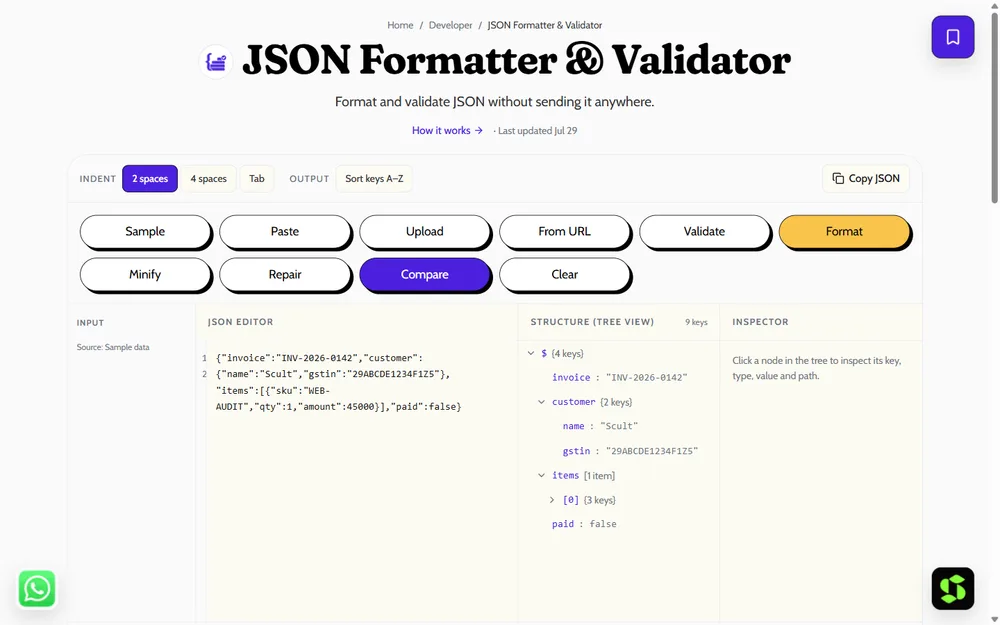
Format, validate and fix JSON in seconds — in your browser, nothing uploaded. Step-by-step with common fixes.
To format JSON, paste it into a JSON formatter and click "Beautify" — it adds indentation and line breaks so it's readable. To validate it, use the same tool's "Validate" option, which checks the syntax and points to any error. Here's exactly how, step by step, plus how to fix the errors you'll actually hit along the way.
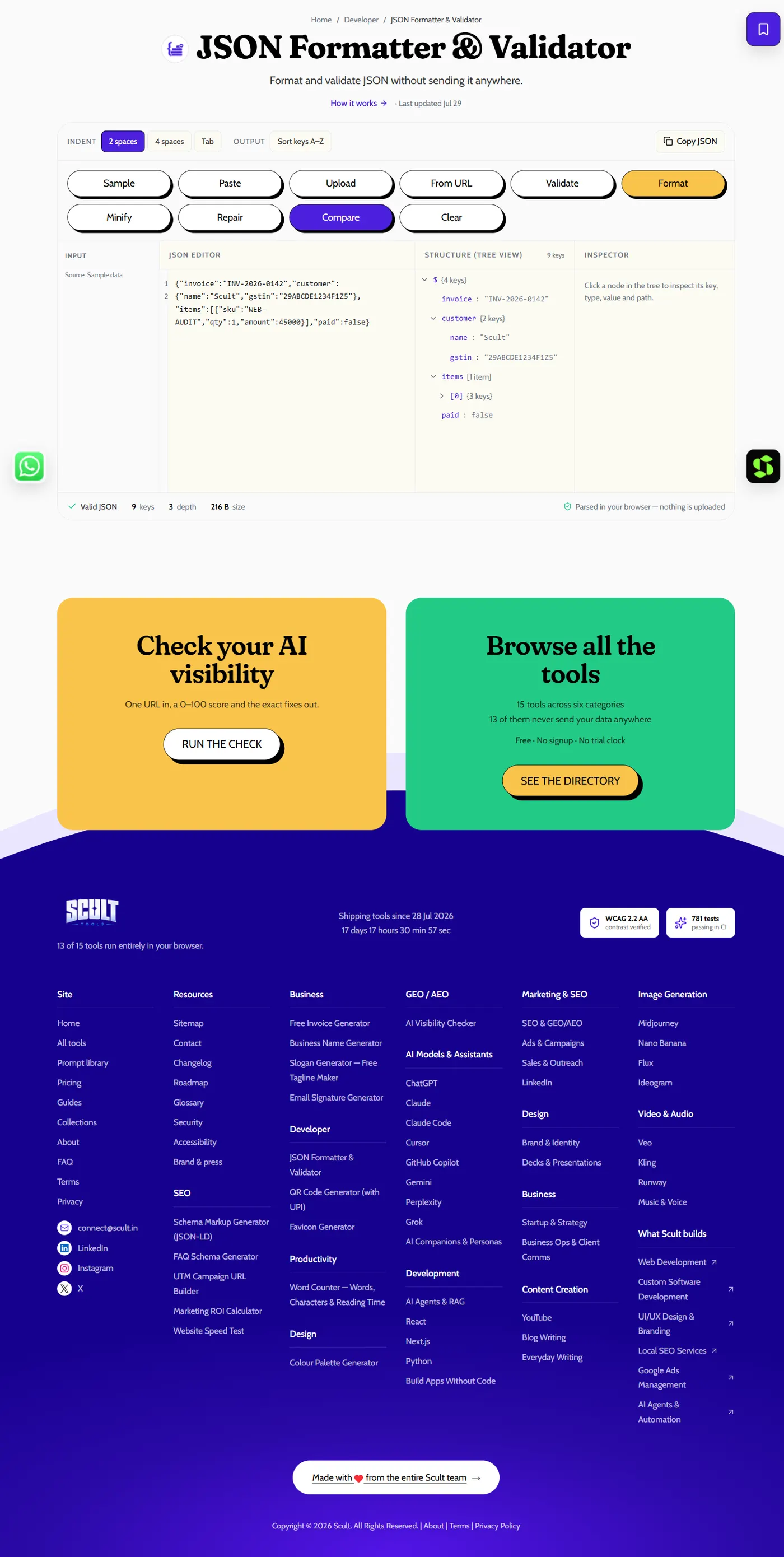
The JSON Formatter & Validator: paste or upload JSON and get it formatted, validated, and rendered as an explorable tree — without the data ever leaving your browser.
Why Formatting and Validating Are Two Separate (but Related) Steps
It's worth being clear on the distinction before starting: formatting changes how JSON looks — adding indentation, line breaks, and syntax highlighting — without checking whether it's actually valid. Validating checks whether the JSON is syntactically correct according to the JSON specification, regardless of how it's formatted. A formatter will often refuse to beautify genuinely broken JSON (since it can't know where to add line breaks in malformed data), which is why the two functions are closely linked in practice even though they answer different questions.
Step 1: Copy Your JSON
Copy your JSON exactly as it is — even if it's messy, all on one line, minified, or copied directly from an API response or a log file. There's no need to clean it up manually first; that's exactly what the next steps handle for you.
Step 2: Paste It Into a JSON Formatter
Paste the copied JSON into the free JSON formatter. Everything runs entirely in your browser — this matters when the JSON you're working with is an actual API response, a config file, or anything containing sensitive values you wouldn't want uploaded to an external server for processing.
Step 3: Click Format or Beautify
Click Format (sometimes labeled Beautify) to have the tool automatically add proper indentation, line breaks, and syntax highlighting, transforming a dense, single-line block into a clearly structured, readable layout. This step alone makes a huge difference when you're trying to understand an unfamiliar or deeply nested JSON structure at a glance.
Step 4: Validate the JSON
Click Validate to check the syntax specifically. If the JSON is valid, you'll get a clear confirmation. If it isn't, you'll see the exact error and its location — typically the line and character position — rather than being left to scan the whole document manually looking for what's wrong.
Step 5: Fix Any Flagged Issues and Re-Validate
Go to the exact location the validator flagged, apply the appropriate fix (see the common fixes below), and run Validate again to confirm the issue is actually resolved. For anything beyond a single small typo, it's worth re-validating after every fix rather than making several changes at once and hoping they were all correct — a second, unrelated error can otherwise get masked by the first one until you fix it and validate again.
How to Minify JSON
Once your JSON is confirmed valid, click Minify to strip all unnecessary whitespace, producing the smallest possible version for transmission over a network or storage where every byte matters. Minified JSON is functionally identical to its beautified version — it's the same data, just without the formatting that makes it easier for a human (not a machine) to read.
Fixing the Errors You'll Actually Hit
- Trailing comma — remove the comma immediately after the last item in an object or array; standard JSON doesn't permit one.
- Single quotes — JSON requires double quotes for both keys and string values; single quotes anywhere will cause a validation error.
- Unquoted keys — every key must be wrapped in double quotes, even when it would be valid as an unquoted property name in JavaScript.
- Missing bracket or brace — every opening
{or[needs a matching closing}or]; a single missing one breaks everything after it in the structure.
For the complete list of common errors with worked examples of each, see common JSON errors, which goes deeper into exactly what causes each one and how to spot it quickly.
Who Needs to Do This, and Why
Developers debugging an API integration, QA testers verifying a response payload, technical writers documenting an API's expected format, and anyone troubleshooting a broken config file all run into the same basic need: turning a hard-to-read blob of JSON into something a human can actually inspect, and confirming it's syntactically correct before assuming a problem lies elsewhere. You don't need to be a professional developer to use this process — the steps are the same regardless of your technical background, and understanding what the error messages mean (covered in the fixes below) is often the only "technical" knowledge actually required.
Formatting and Validating API Responses Specifically
A common real-world use case is formatting a raw API response to actually read it — API responses are frequently returned minified (all on one line) for efficient transmission, which makes them nearly unreadable to a human trying to debug an issue. Paste the raw response directly into the formatter, beautify it, and you can immediately see the actual structure — which fields are present, how they're nested, and whether the shape matches what your code expects — far faster than trying to trace through a single unbroken line of text.
Comparing Two Versions of JSON to Spot Differences
Beyond formatting a single document, a common practical need is comparing two versions of JSON — an API response before and after a change, or two config files that should be identical but might have drifted. Formatting both to the same consistent style first makes any actual content differences far easier to spot, since inconsistent whitespace or line-break choices between two otherwise-similar documents can visually obscure genuine differences in the underlying data. Some formatters include a dedicated comparison or "diff" view for exactly this purpose, highlighting only the fields that actually differ once both documents are normalized to the same format.
Formatting and Validating Config Files
Application and tool configuration files stored as JSON benefit from the same process, particularly before committing a change to a shared config file — a single typo (a missing comma, an unquoted key added carelessly) can break an entire application's startup if it's not caught before deployment. Running a config file through validation as a final check before committing it is a fast, low-effort habit that catches exactly this kind of mistake before it becomes a production incident.
Formatting JSON Directly Within a Code Editor
Beyond a dedicated web-based formatter, most modern code editors (VS Code, and others) include built-in JSON formatting, typically triggered by a keyboard shortcut or a right-click "Format Document" option, and often configurable to run automatically every time you save a file. This is worth setting up if you regularly work with JSON files as part of your actual codebase, since it removes the extra step of copying content out to an external tool — though a standalone browser-based formatter remains the more convenient choice for a one-off check of something you didn't write yourself, like an API response you're inspecting or a JSON snippet someone shared with you.
Doing This Entirely in Your Browser
Everything in the steps above runs client-side, directly in your browser — nothing you paste is uploaded to a server or stored anywhere. This matters more than it might initially seem: API responses, config files, and application data frequently contain values (tokens, internal identifiers, customer data) that shouldn't be sent to a third-party server just to check formatting or catch a syntax error. Always confirm that any tool you use for this processes data locally rather than uploading it, especially before pasting anything containing real production data or credentials.
What "Format" Actually Changes Under the Hood
When a formatter beautifies JSON, it doesn't alter the underlying data at all — every key, value, and structural relationship stays exactly the same. What changes is purely presentational: whitespace (spaces, tabs, line breaks) gets inserted between elements according to consistent indentation rules, and syntax highlighting colors different parts of the structure (keys, strings, numbers, booleans) for easier visual scanning. This is worth understanding clearly, since it means formatting is always a safe, reversible operation — you can beautify, minify, and beautify again without ever risking a change to the actual data itself.
Handling Very Large JSON Files
Formatting and validating a very large JSON file — megabytes of data, common in bulk API exports or database dumps — can be slower or occasionally hit size limits in a browser-based tool, since the entire document typically needs to be held in memory to process it. For genuinely large files, a command-line JSON tool or a script using your programming language's native JSON parsing is often more practical than a browser-based formatter, since it isn't constrained by the same memory limits a browser tab imposes. For most everyday use — API responses, config files, typical data exports — a browser-based formatter handles the size comfortably without any special consideration needed.
A Worked Example: Debugging a Broken API Response
Imagine you're integrating with a third-party API and your application throws a parsing error the moment it tries to read the response. Rather than guessing, copy the raw response body exactly as received, paste it into the formatter, and click Format — if it beautifies cleanly, the JSON itself is likely valid and the problem lies elsewhere in your code (perhaps you're reading the wrong field name, or the response has a different structure than you expected). If the formatter can't beautify it, or the Validate step flags an error, you now know the problem is with the JSON itself — possibly the API returned an error page instead of JSON, a truncated response, or genuinely malformed data on the API provider's side. This single check, taking seconds, immediately narrows down where to focus your actual debugging effort.
Formatting Deeply Nested JSON
Deeply nested JSON — objects inside arrays inside other objects, several levels deep — is exactly where formatting matters most, since a minified or poorly indented version of a deeply nested structure becomes almost impossible to read by eye, while a properly beautified version makes the nesting levels immediately visible through consistent indentation. If you're working with a particularly large or deeply nested structure, most formatters also support collapsing and expanding individual sections, letting you focus on one part of a large document without scrolling through the entire thing at once.
Common Questions From Non-Developers Using This Process
People without a coding background who encounter this process for the first time — often through a support ticket, a data export, or a config file they've been asked to edit — sometimes wonder whether they need to understand programming to use it correctly. They don't: the formatting and validation steps are purely mechanical (copy, paste, click), and the common fixes covered above (trailing commas, quote types, unquoted keys) are pattern-matching exercises rather than programming concepts. Where it does help to have some familiarity is in understanding what "valid" actually means for JSON specifically, which the syntax rules covered in what is JSON explain from the ground up.
When to Automate This Instead of Doing It Manually
If you find yourself formatting or validating JSON repeatedly as part of a regular workflow — checking API responses during development, validating config files before every deployment — it's worth automating the check rather than doing it manually each time. Most code editors have built-in JSON formatting and validation, and CI/CD pipelines can run automated JSON linting as part of a build step, catching a malformed config file before it ever reaches a human review at all. Manual formatting and validation, like the process above, remains the right tool for a one-off check or when working with JSON outside your usual development environment.
Frequently Asked Questions
How do I format JSON online?
Paste it into a JSON formatter and click Beautify or Format — it runs entirely in your browser and adds proper indentation and line breaks in an instant.
How do I check if JSON is valid?
Use the Validate function — it checks the syntax and, if the JSON is malformed, reports the exact error and its location (line and character position) rather than leaving you to search manually.
Is it safe to paste sensitive JSON into a formatter?
Only if the tool processes everything locally in your browser rather than uploading it to a server. Confirm this before pasting anything containing real tokens, credentials, or customer data — our formatter processes everything client-side, with nothing uploaded anywhere.
What's the difference between formatting and validating JSON?
Formatting changes how the JSON looks (indentation, line breaks) without checking correctness; validating checks whether the JSON is actually syntactically correct, regardless of formatting. Both are useful together, but they answer different questions.
Why would I minify JSON instead of keeping it formatted?
Minified JSON strips all unnecessary whitespace, producing a smaller file size for network transmission or storage where every byte matters — it's functionally identical data, just without the human-readable formatting.
Can I format and validate JSON without any coding knowledge?
Yes — the process above requires no coding at all, just copying, pasting, and clicking Format and Validate. Understanding what the common error messages mean (covered in common JSON errors) helps you fix issues faster, but isn't required to use the tool itself.
Does formatting JSON change the actual data?
No — formatting only changes whitespace and presentation (indentation, line breaks, syntax highlighting). Every key, value, and structural relationship in the data stays exactly the same, making it a fully safe and reversible operation.
Can this process fix errors automatically, or do I have to fix them myself?
The validator identifies and locates errors automatically, but applying the actual fix (removing a trailing comma, adding a missing quote) is a manual step — this is deliberate, since automatically guessing at a fix risks changing your data in a way you didn't intend.
Do I need to install anything to format and validate JSON?
No — a browser-based JSON formatter requires no installation at all; you simply paste your JSON and click a button. This is one of its biggest advantages over a code editor extension or command-line tool for occasional, one-off use.
Can I format and validate a very large JSON file in my browser?
Usually yes for typical files, but genuinely large files (many megabytes, common in bulk exports) can be slower or hit browser memory limits. For very large files, a command-line tool or a script using your language's native JSON parsing is often more practical.
How do I compare two versions of JSON to see what changed?
Format both to the same consistent style first, since inconsistent whitespace between two documents can visually obscure genuine content differences. Some formatters also include a dedicated comparison or diff view that highlights only the fields that actually differ.
Should I validate JSON before or after formatting it?
Either order works in practice, though validating first can be useful when the JSON is malformed enough that a formatter can't reliably determine where to add line breaks — validating pinpoints the actual syntax problem regardless of the current formatting.
Need experienced developers? Talk to Scult.