Create a clean, professional email signature — what to include, design tips, and install steps for Gmail & Outlook. Free generator.
A professional email signature includes your name, job title, company, and one or two ways to reach you — kept clean, on-brand, and no more than a few lines. Build it once, install it in Gmail or Outlook, and every email you send afterward looks polished automatically. Here's exactly how, step by step.
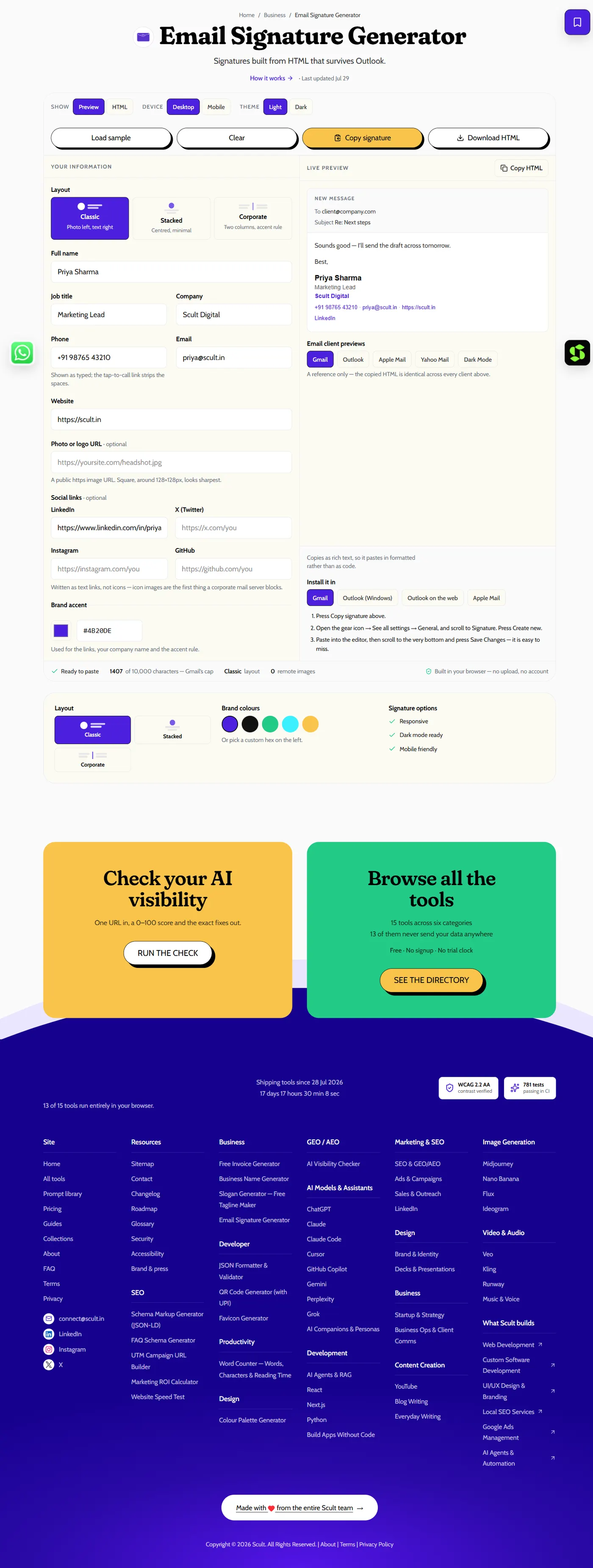
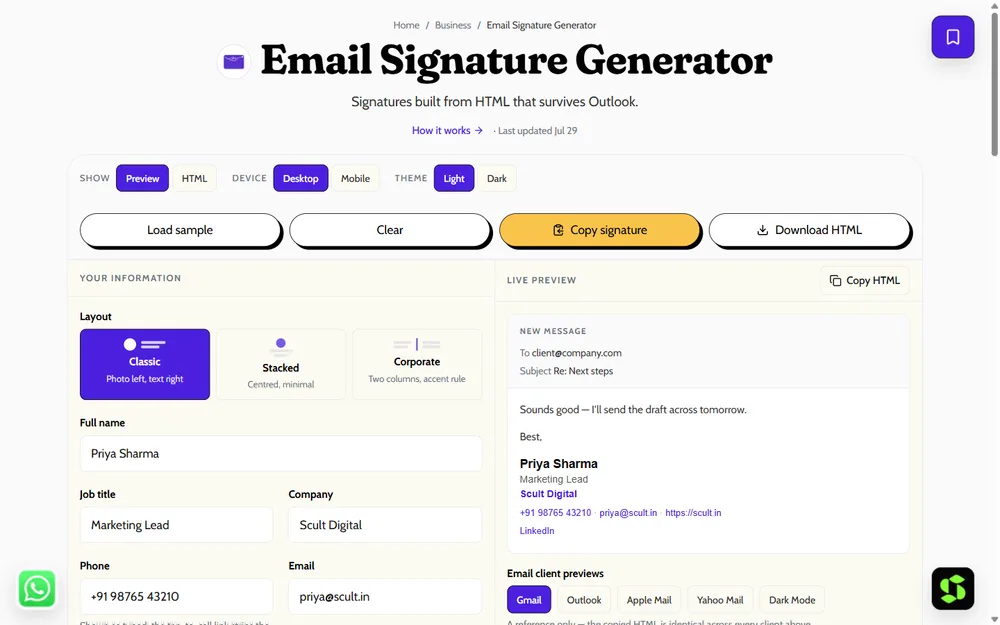
The Email Signature Generator: fill in your details, choose a layout, and preview exactly how the signature renders in Gmail, Outlook, Apple Mail and dark mode before copying the HTML.
Who This Guide Is For
This process works whether you're a solo freelancer setting up your very first professional signature, an employee at a company that hasn't standardized signatures yet, or a small business owner rolling out a consistent signature across a growing team. The five steps stay the same regardless of scale — what changes is whether you're deciding your own details in Step 1 or coordinating a shared template across several people.
Why an Email Signature Matters More Than It Seems
Every email you send is a small, repeated brand touchpoint — a client, a partner, or a prospect sees your signature dozens of times over the course of a relationship, far more often than they'll ever visit your website or see your logo anywhere else. A cluttered, inconsistent, or broken-looking signature quietly undermines the professionalism of everything else in the email, while a clean, consistent one reinforces it every single time, at essentially zero ongoing cost once it's set up correctly.
Step 1: Gather Your Core Details
Before designing anything, decide exactly what belongs in your signature: your name and job title, your company (and logo, if you want one), and one or two contact points — typically a phone number and a website, not both plus three other options competing for attention. Add a key link if relevant (a LinkedIn profile or a booking link), but resist the urge to include everything you could possibly link to. Leave out your email address entirely — the recipient already has it, since they're looking at an email you sent — along with any long quotes and an excessive stack of social icons, all of which add clutter without adding real value.
Step 2: Design It Following Clear Hierarchy Principles
With your details settled, design the actual layout using a small set of principles that consistently separate a clean signature from a cluttered one: keep it short (3–5 lines total), establish clear visual hierarchy with your name largest and supporting details smaller, use one on-brand accent colour rather than a scattered rainbow of colors, and confirm it's mobile-friendly, since a large share of your recipients will read your email — and see your signature — on a phone screen where anything oversized or misaligned becomes immediately obvious.
Step 3: Build It With a Generator Rather Than by Hand
Manually coding an email signature that renders correctly is deceptively difficult, because different email clients interpret HTML and CSS inconsistently — what looks perfect in Gmail can break entirely in Outlook. The free email signature generator sidesteps this: fill in your details, add a logo and accent colour, and it outputs signature HTML built specifically to render consistently across clients, using the table-based HTML structure Outlook actually requires (more on this below) — no manual coding needed.
Step 4: Install It in Gmail
In Gmail, go to Settings (the gear icon) → See all settings → General → Signature, create a new signature, paste in what your generator produced, and save. ⚠️CHECK the exact menu path against Gmail's current interface, since Google periodically reorganizes settings menus. Gmail also lets you set different signatures for new emails versus replies/forwards — worth configuring deliberately rather than leaving both on the same default.
Step 5: Install It in Outlook
In Outlook, the path differs slightly by version: on desktop, go to File → Options → Mail → Signatures; on the web version, go to Settings → Mail → Compose and reply. Paste your signature in either location and set it as your default for new messages and replies. ⚠️CHECK the exact current menu path for your specific Outlook version, since desktop and web interfaces are updated on different schedules and can shift over time.
Why Outlook Specifically Breaks Signatures Other Clients Handle Fine
Outlook (particularly the desktop version) uses Microsoft Word's rendering engine to display HTML email content rather than a standard web rendering engine — this is the single biggest reason a signature that looks perfect in Gmail can appear broken, misaligned, or oddly spaced in Outlook. Modern CSS layout techniques (flexbox, certain positioning properties) that render correctly almost everywhere else often fail silently in Outlook's Word-based renderer. The reliable fix, used by virtually every professional signature tool, is table-based HTML — an older but far more universally compatible layout approach that Word's renderer handles correctly. This is exactly why building a signature by hand is riskier than it looks: it's easy to produce something that looks great in your own inbox while rendering badly for any recipient using Outlook.
Designing for Mobile From the Start
A meaningful share of your email's recipients will open it on a phone, where screen width is limited and anything designed only with a wide desktop layout in mind can wrap awkwardly or get cut off. Keep your signature narrow enough to fit within a typical mobile email column without horizontal scrolling, avoid side-by-side multi-column layouts that don't collapse gracefully on a small screen, and test your final signature by actually sending yourself a test email and opening it on a phone — not just checking how it looks in your email client's desktop compose window.
Installing on Mobile Devices
Beyond the desktop Gmail and Outlook steps above, most people also send email from their phone's native mail app or the Gmail/Outlook mobile apps, which often have separate, simpler signature settings — sometimes limited to plain text rather than full HTML formatting. Check your specific mobile mail app's signature settings separately from desktop, since a signature configured only on desktop won't automatically appear on emails sent from your phone unless you also configure the mobile app or use a service (like a company-wide email client) that syncs signature settings account-wide rather than per-device.
What a Rollout Timeline Looks Like in Practice
For a small team, a realistic rollout looks like: finalize the template and test it across clients (a day or two), communicate the change and the reasoning to the team, give everyone explicit installation instructions rather than assuming they'll each figure it out, and follow up a week later to confirm everyone has actually switched over rather than assuming compliance from a single announcement. Larger organizations with dozens or hundreds of employees typically need a longer window and often benefit from the centralized signature management tools mentioned above, precisely because a purely manual, self-serve rollout doesn't scale reliably past a certain team size.
Signature Design and Your Broader Brand Identity
Your email signature is one small but frequently-seen expression of the same brand identity carried by your logo, your website, and your business name — the accent colour, the logo placement, and even the tone of your job title should feel consistent with everything else a recipient might encounter about your business elsewhere. If your broader brand identity is still being established, it's worth settling that first — see logo and brand identity design for what makes a visual identity system hold together — since a signature designed in isolation, before the rest of the identity is settled, often needs revisiting once the full brand comes together.
Signature Length Trade-offs by Email Volume
If you send a very high volume of email daily — a support role, a sales role handling many outbound messages — consider leaning toward the shorter end of the 3–5 line range, since the cumulative visual weight of a slightly longer signature repeated across dozens of daily emails adds up more than it would for someone sending a handful of emails a day. A lower-volume role (an executive, a specialist consultant) has more room to include an extra detail or link without it feeling repetitive across their smaller daily email footprint.
Common Signature Mistakes and Their Actual Cost
Including your email address wastes space telling the recipient information they already have simply by looking at the "From" field. Stacking every social icon you have an account on dilutes attention away from the two or three that actually matter for your business relationships. Using an image for the entire signature (rather than styled text) can be blocked by default in many email clients, meaning some recipients see a broken image icon instead of your signature at all, and it also fails basic accessibility for anyone using a screen reader. Skipping mobile testing entirely means you might not discover a broken layout until a client mentions it — or, more likely, never mentions it and just quietly forms an impression of carelessness.
Signature Design and Accessibility
Beyond the design principles in Step 2, a genuinely accessible signature considers a few details easy to overlook: sufficient colour contrast between your accent colour and the background so low-vision readers can distinguish it clearly, descriptive alt text on any logo image so a screen reader announces something meaningful rather than nothing at all, and avoiding reliance on colour alone to indicate a clickable link (pairing colour with an underline, for instance). None of this requires significant extra effort once you know to check for it, and it ensures your signature actually communicates to every recipient rather than just the majority using a standard visual browser.
Testing Across Email Clients Before Rolling Out Widely
Before finalizing a signature — especially one you plan to roll out across a team — send test emails to yourself and a few colleagues using different clients: Gmail, Outlook desktop, Outlook web, and at least one mobile mail app. A signature that renders perfectly in the client you personally use isn't proof it works everywhere; Outlook's rendering quirks in particular are exactly the kind of problem that only surfaces once you actually check, not something you'd notice by inspecting the signature in Gmail alone.
Keeping Signatures Consistent Across a Team
If you're setting this up for more than just yourself, consistency matters as much as any individual signature's design — a team where five people all send emails with subtly different fonts, colors, or layouts looks less professional collectively than any one person's imperfect signature would look individually. Build one template using the steps above, then have every team member fill in only their personal details (name, title, direct contact) while keeping the shared structure, colour, and logo placement identical across the whole team.
A Worked Example: Building a Signature Start to Finish
To make the five steps concrete, walk through them for a hypothetical marketing lead named Priya. Step 1: she settles on her name, title ("Marketing Lead"), company ("Scult"), a phone number, and her company website as the two contact points, plus a LinkedIn link as her one key link — deliberately leaving out her email address and any additional social icons. Step 2: she designs it as three lines — name largest, title and company on the second line, contact details and link smaller on the third — using her company's single brand accent colour for her name. Step 3: rather than coding this by hand, she fills in these exact details in a free signature generator, which outputs table-based HTML built to render consistently. Step 4: she pastes the generated HTML into Gmail's signature settings and sets it as default for new emails and replies. Step 5: since she also uses Outlook for client communication, she pastes the same HTML into Outlook's signature settings and confirms it renders identically to how it looked in Gmail. The whole process, start to finish, takes under ten minutes once her details are settled.
Email Signatures for Different Business Types
Solo freelancers and consultants benefit from a signature that doubles as a lightweight credibility signal — name, specific expertise or title, and a single link to a portfolio or booking page, since a freelancer's email is often a prospect's first real touchpoint before any other marketing material.
Small teams and agencies benefit most from strict consistency — one shared template with only personal details swapped per person — since a scattered set of individually-designed signatures reads as less organized collectively than a uniform one, even if some individual versions look nice in isolation.
Larger companies with dedicated IT or brand teams often deploy signatures centrally through email server-side rules or a signature management tool, removing the need for each employee to manually configure their own — worth investigating once your team grows past a size where manual per-person setup becomes a real maintenance burden.
Client-facing roles (sales, account management, customer success) benefit from including a clear, single call-to-action link (a booking page, a support portal) matched to what that role's typical email exchange is trying to accomplish next.
Updating a Signature When Details Change
A signature isn't a one-time, permanent asset — job titles change, phone numbers get reassigned, companies rebrand, and social links occasionally go stale. Build the habit of revisiting your signature whenever any of these details change, rather than letting an outdated title or a broken link sit indefinitely simply because the signature was "already set up." For a team, this is exactly the kind of small maintenance task that benefits from a shared template (see the team consistency section below) rather than expecting each person to remember to update their own copy independently.
See Full Best Practices and Examples
For the complete set of do's and don'ts, role-based example structures, and the mistakes that undermine an otherwise solid signature, see email signature best practices — it expands directly on the design principles in Step 2 with concrete, copyable examples.
Choosing the Right Accent Colour
Pull your accent colour directly from your existing brand palette rather than picking something fresh in isolation for the signature specifically — even a subtly off-brand shade creates a small, avoidable inconsistency with everything else a recipient might see from your business. Check the colour against both a plain white background (the default in most email clients) and a dark-mode background (increasingly common as more clients add dark mode support), since a colour that reads clearly on one can become nearly invisible against the other.
Signature Management Tools for Growing Teams
Once a team grows past a handful of people, manually asking everyone to individually paste and configure their own signature becomes a real maintenance burden — people join, leave, change titles, and the shared template drifts as different people make small unauthorized tweaks over time. Dedicated signature management tools (separate from a one-off generator) can deploy and update signatures centrally across an entire organization's email accounts, ensuring everyone's signature stays current and consistent without relying on each person to manually update their own copy whenever something changes. This is generally worth the investment once manual per-person maintenance starts consuming noticeable time, but unnecessary overhead for a small team where a shared template and occasional reminders work fine.
Rolling Out a Signature Change Without Disruption
If you're replacing an existing, already-familiar signature across a team, communicate the reasoning clearly (brand consistency, a rebrand, fixing a rendering problem) rather than just mandating the switch silently — people are more likely to actually adopt a new template correctly when they understand why it's changing, and less likely to quietly keep using an old personal version out of habit or mild resistance to losing a personal touch they'd grown attached to.
What to Do If Your Signature Looks Different Across Devices
If your signature renders correctly on your computer but looks different (or breaks entirely) on your phone, the most common cause is that you've only configured the signature in one location — desktop email client settings and mobile mail app settings are frequently separate and don't automatically sync, especially across different apps (Gmail app vs. your phone's native mail app) even when they're both pointed at the same email account. Check your mobile mail app's own signature settings directly rather than assuming your desktop configuration carries over automatically.
Frequently Asked Questions
What should a professional email signature include?
Your name, job title, company, one or two contact methods (typically phone and website), and a key link if relevant — kept short, on-brand, and free of clutter like your own email address or excessive social icons.
How do I add a signature in Gmail?
Go to Settings → See all settings → General → Signature, create a new signature, paste it in, and save. ⚠️CHECK the exact current menu path against Gmail's interface, since Google periodically reorganizes settings.
How do I add a signature in Outlook?
On desktop, go to File → Options → Mail → Signatures; on the web version, go to Settings → Mail → Compose and reply. Paste your signature and set it as default. ⚠️CHECK the current menu path for your specific Outlook version.
Why does my signature look broken in Outlook specifically?
Outlook's desktop version renders HTML using Microsoft Word's engine rather than a standard web renderer, which handles many modern CSS layouts poorly. Table-based HTML — which a proper signature generator builds automatically — renders reliably across both Outlook and other clients.
How long should an email signature be?
Three to five lines is the reliable range — long enough to convey what matters (name, title, company, contact), short enough to stay clean and not overwhelm the actual email content above it.
Should I include a photo in my email signature?
It's optional and varies by industry and personal preference — a small, professional headshot can add a personal touch in client-facing roles, but it's not necessary, and it adds another element that needs to render correctly across every email client and device.
Can I use a free tool to build a signature that works in every email client?
Yes — the free email signature generator outputs table-based HTML specifically built for cross-client compatibility, including Outlook's Word-based rendering quirks, without requiring any manual coding.
Does my signature's accent colour need to work in dark mode?
Increasingly yes — check it against both a light and dark email background, since more clients support dark mode by default now, and a colour that's clearly visible on white can nearly disappear against a dark background.
Is it worth investing in a dedicated signature management tool?
For a small team, a shared template plus a free generator is usually sufficient. Once you're managing signatures for a larger organization where manual per-person updates have become a genuine, recurring time cost, a dedicated central signature management tool becomes worth the investment.
Should my signature length change based on how much email I send?
Yes, it's worth considering — a high-volume sender (support, sales) benefits from leaning toward the shorter end of the 3–5 line range, since the cumulative visual weight of a longer signature adds up faster across many daily emails than it does for a lower-volume sender.
How often should I update my email signature?
Whenever a core detail changes — a new job title, a changed phone number, a rebrand, or a stale social link — rather than on a fixed schedule. Treat it as ongoing light maintenance, not a one-time setup you never revisit.
Is a text-only signature ever better than one with a logo?
For very high-volume, plain-text-heavy communication (some support or internal workflows), a minimal text-only signature can be the more practical choice — a logo adds the most value in client-facing, relationship-building email.
Can I include a company logo without slowing down my emails?
Yes — use a properly compressed, appropriately sized image rather than a large, unoptimized file, since an oversized logo image can noticeably increase email load time and looks identical in rendered quality to a correctly compressed one.
What's the single most impactful step in this whole process?
Step 3 — using a proper generator rather than hand-coding your signature — since it's what actually solves Outlook's rendering quirks reliably, a problem that trips up nearly every manually built signature at some point.
Can I use different signatures for new emails versus replies?
Yes — most email clients, including Gmail, let you set a fuller signature for new outgoing emails and a shorter one for replies and forwards, which keeps long reply chains from accumulating repeated, unnecessary visual weight with every message.
What's the fastest way to build a signature that works everywhere?
Use a free signature generator rather than hand-coding one — it outputs table-based HTML built specifically for cross-client compatibility, including Outlook's Word-based rendering quirks, in far less time than manually testing and fixing a hand-built version across multiple clients.
Do I need a different signature for mobile devices?
Not necessarily a different one, but you should design and test the same signature specifically for mobile rendering — narrow layout, no side-by-side columns that don't collapse well — and separately configure your phone's mail app, since desktop signature settings don't automatically apply to mobile apps.
Want consistent branding everywhere? Scult does branding & web.