Make a QR code in seconds — for a URL, UPI payment, WiFi or contact. Free, no signup, no tracking, and it never expires. Step-by-step.
You can create a QR code in under a minute: open a QR generator, choose what it should link to (a URL, UPI ID, WiFi, or contact), enter the details, and download the image. The important part most guides skip — make sure it's a static QR code so it never expires. Here's how to do it properly, step by step, and how to make sure it actually scans.
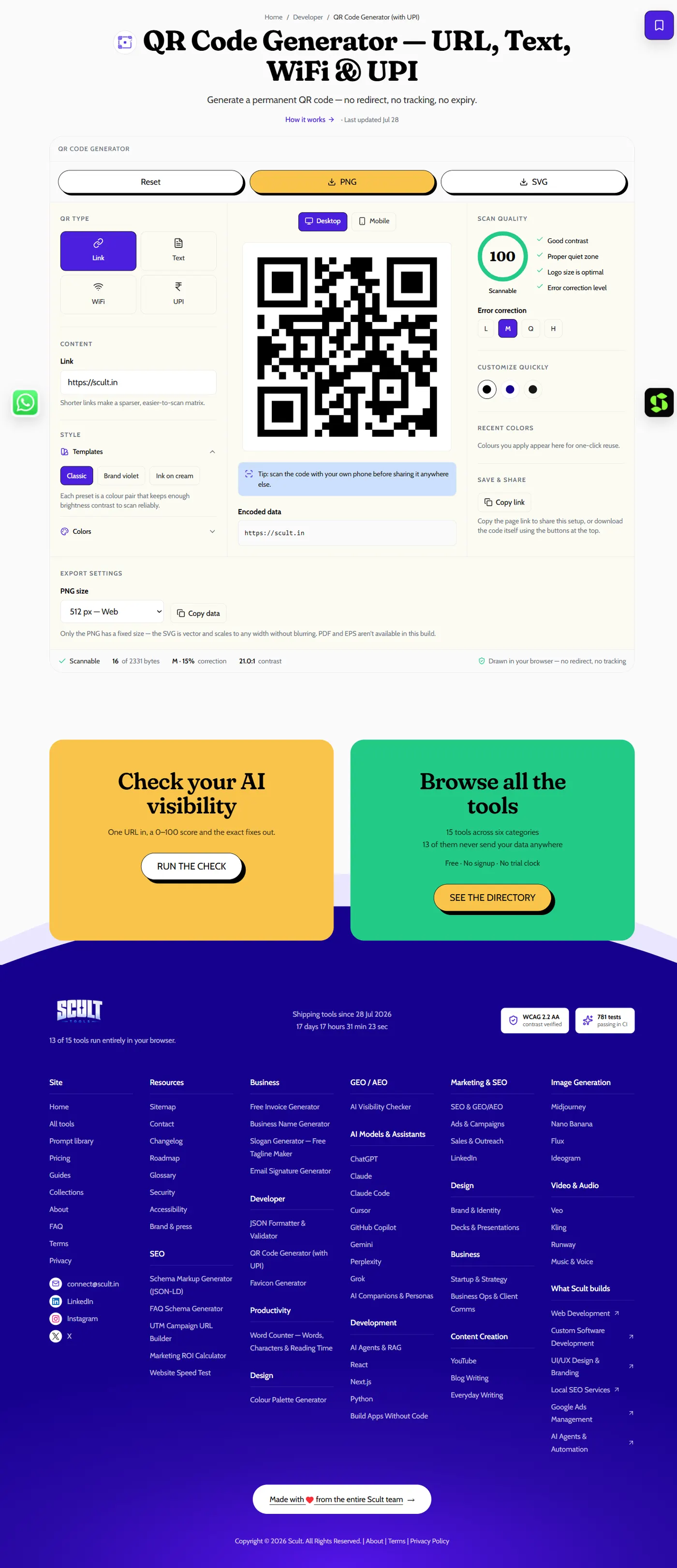
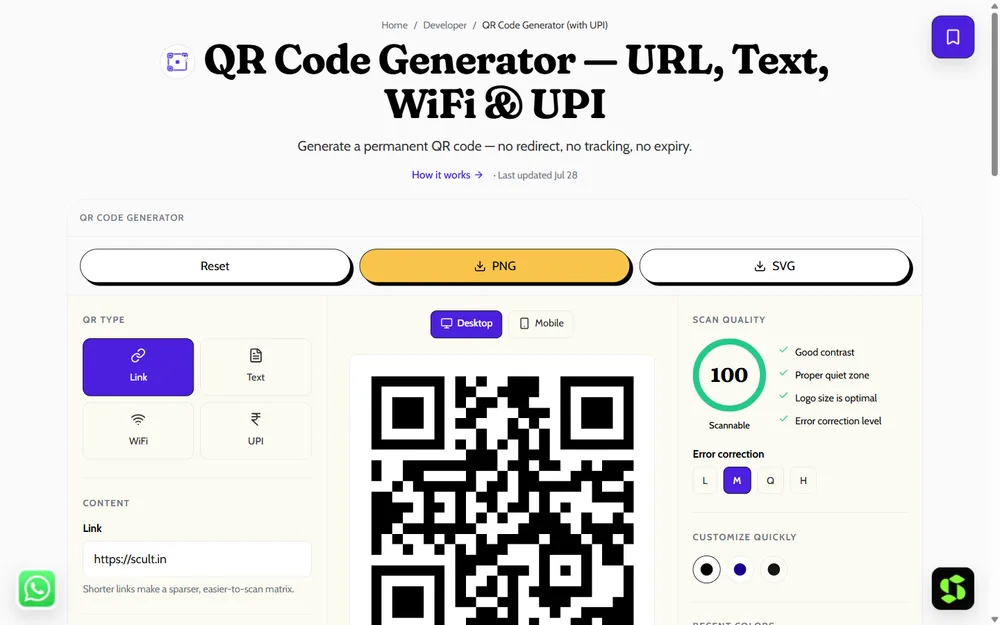
The QR Code Generator: choose a type — link, text, WiFi or UPI — and get a permanent, scannable code with a live scan-quality score.
Who This Guide Is For
Whether you're a small business owner setting up your first payment counter, a marketer preparing a print campaign, an event organizer printing badges, or simply someone wanting a permanent code for a personal WiFi network or contact card, the same six-step process applies. What changes is which type you select in Step 2 and how much customization you apply in Step 4 — the underlying process of creating, testing, and deploying a working QR code stays identical regardless of the use case.
What You Need Before You Start
Nothing but the destination. A QR code is just a machine-readable link to something, so decide what you want it to open:
- A website URL (the most common use case by far)
- A UPI payment (your UPI ID — especially popular in India)
- WiFi credentials (guests join without typing a password)
- A contact card (vCard) that saves your details in one scan
- Plain text, a phone number, or a WhatsApp link
Step 1: Open a QR Code Generator
Use our free QR code generator — no signup required, and every code it produces is permanent. This matters more than it might seem: many "free" tools quietly generate codes that stop working once you stop paying, which is exactly the trap covered in the next section.
Step 2: Pick the Type
Choose what your code should encode — URL, UPI, WiFi, vCard, plain text, or a phone number. Picking the right type upfront matters because each one asks for different details and produces a code optimized for that specific use case (a UPI code, for instance, is structured so payment apps recognize it immediately rather than treating it as a generic link).
Step 3: Enter Your Details
Fill in the specific information for your chosen type — paste your link for a URL code, or enter your UPI ID for a payment code. Double-check for typos here specifically, since a single wrong character in a URL or UPI ID produces a perfectly valid, perfectly scannable QR code that sends people to the wrong place entirely.
Step 4: Customise (Optional)
Set colours and add a centre logo to match your brand if you want a more polished, on-brand result. Keep strong contrast between the code and its background regardless of your colour choice — this isn't just an aesthetic preference, it directly affects whether a scanner can actually read the pattern reliably.
Step 5: Download
Grab a PNG for everyday digital use (social posts, a website, a slide) or an SVG for anything printed, since SVG stays perfectly sharp at any size — a QR code blown up to poster size from a low-resolution PNG can become blurry enough to fail scanning entirely, while an SVG scales cleanly to any dimension.
Step 6: Test It
Scan your finished code with two different phones, ideally from two different distances and lighting conditions, before you use it anywhere real. This single step catches the majority of problems — a logo that's slightly too large, contrast that looked fine on screen but doesn't scan well in print, or a typo in the encoded data — before they become an expensive mistake on printed materials you can't easily fix.
That's the complete process. No account, no expiry, no scan tracking.
Free, and It Never Expires — Why That Matters
Many "free" QR tools actually create dynamic codes that route through their own servers rather than encoding your destination directly. They look free and work identically at first, but the code stops working the moment you stop paying for the underlying service, or if the company behind it shuts down — and anything you've already printed with that code becomes a dead square overnight, with no way to fix it short of reprinting everything.
A static QR code encodes the data directly into the pattern itself, so it works forever with no middleman and no ongoing dependency on any company staying in business. For a poster, a package, a business card, or a shop counter — anywhere you're printing something meant to last — static is unambiguously what you want. See the full static vs dynamic comparison if you're weighing whether a dynamic code's tracking features might be worth the trade-off for a specific campaign.
Tips So Your QR Code Actually Scans
- Contrast: dark code on a light background scans most reliably. Avoid light-on-dark or generally low-contrast colour combinations, even if they look more on-brand.
- Size: on print, aim for at least 2×2 cm at minimum; go noticeably bigger for anything viewed from a distance, like a poster or a storefront window.
- Quiet zone: leave clear white space around the code — don't crowd it with text, borders, or other design elements that eat into the margin a scanner needs to lock onto the pattern.
- Logo: a small centre logo is fine and won't break the code thanks to built-in error correction, but too large a logo will. Always test-scan after adding one rather than assuming it's fine.
- Add a prompt: a simple line like "Scan to pay" or "Scan for menu" measurably lifts how often people actually scan, compared to a bare code with no context at all.
- Always test before printing at any real scale — catching a problem on one test print costs nothing; catching it after a thousand copies are already printed is expensive.
How to Create Specific Types of QR Codes
- QR code for a URL: pick URL, paste the link, download — the simplest and most common use case.
- UPI payment QR: see the complete UPI QR code guide — enter your UPI ID and customers scan to pay you directly, no card machine required.
- WiFi QR: choose WiFi, enter your network name and password; guests scan to connect instantly without typing anything.
- Contact (vCard) QR: enter your details; one scan saves them directly to a phone's contacts app, useful on a business card or an event badge.
QR Codes and Accessibility
While a QR code itself is a purely visual element that assumes the person scanning can see and physically aim a camera at it, it's worth pairing any QR-based interaction with an accessible fallback — a printed URL or phone number alongside the code — for anyone who can't or prefers not to scan. This is a small addition that costs little space but meaningfully widens who can actually access whatever the code leads to, particularly relevant for any public-facing signage, menu, or payment display.
Choosing Between the Six Content Types in Practice
Deciding which content type to select in Step 2 comes down to what action you want the person scanning to take. If you want them to browse, read, or watch something — a menu, a product page, a video — use URL. If you want them to pay you — at a counter, on an invoice — use UPI. If you want them to get online instantly without typing a password — a cafe, a waiting room, a guest room — use WiFi. If you want them to save your contact details in one action — a business card, a conference badge — use vCard. Plain text suits short, self-contained information (an address, a short message) that doesn't need to link anywhere else. A phone number or WhatsApp type suits driving a direct conversation rather than a page visit.
A Worked Example: Creating a Menu QR Code for a Restaurant
To make the six steps concrete, walk through them for a small restaurant putting its menu online. Step 1: open the generator. Step 2: select the URL type, since the menu itself lives on a web page rather than being encoded directly. Step 3: paste the exact URL of the hosted menu page, double-checking it loads correctly first. Step 4: set the code's colour to match the restaurant's brand, and add a small logo, keeping strong contrast against the paper it'll be printed on. Step 5: download as SVG, since it'll be printed on table tents at various sizes across different tables. Step 6: test-scan the downloaded code with two phones at the actual table height and lighting the code will experience once printed and placed. Only after a successful test does it go to print — and because the menu itself lives on a webpage rather than in the QR code, prices and dishes can be updated anytime without ever touching the printed table tents again.
QR Codes for Different Business Types
Restaurants and cafes benefit most from a URL-type code linking to an easily updatable digital menu, avoiding the cost and waste of reprinting physical menus every time a price or dish changes.
Retail and product businesses commonly use a URL code linking to a product page, a how-to video, or a warranty registration form, turning packaging into an extension of the digital experience.
Service businesses and freelancers often use a vCard contact code on a business card, letting a single scan save full contact details directly to a prospect's phone.
Event organizers frequently use a URL code linking to registration, a schedule, or a feedback form, printed on tickets, badges, or signage throughout a venue.
Choosing the Right Format for Your Use Case
Beyond PNG vs SVG, think about where the code will actually live. A code destined for a screen (a social media post, a slide deck, a website) works fine as a PNG at a reasonable resolution. A code destined for print — especially anything larger than a business card, like a poster, packaging, or signage — should be SVG or a very high-resolution PNG, since print resolution requirements are considerably higher than screen resolution, and a code that looks sharp on your monitor can look pixelated and potentially fail to scan once printed at a larger physical size.
Common Mistakes That Break an Otherwise Good QR Code
Skipping the test-scan step is the single most common and costly mistake — a code that looks perfect on screen can fail to scan for reasons that aren't visually obvious (insufficient contrast, a logo that's slightly too large, an unusually tight quiet zone). Shrinking a code too small for its viewing distance — a code sized for a business card doesn't work at the same physical size on a poster meant to be scanned from several feet away. Using a dynamic code for something permanent — printing a poster or packaging with a dynamic code ties that printed material's usefulness to a subscription staying active indefinitely, which is rarely the intent behind something meant to last. Forgetting a call-to-action — a bare code with no explanation of what scanning it does gets ignored far more often than one paired with a simple, clear prompt.
How QR Code Creation Relates to Your Broader Brand
If you're creating QR codes as part of a broader business setup — alongside choosing a name, a logo, or a slogan — treat the code's visual style as one more small but consistent expression of that same identity, using the same accent colour and logo already established elsewhere. See what makes a good brand name and logo and brand identity design if you're still working through those earlier, more foundational identity decisions before getting to something as small (but still visible) as a QR code's styling.
Deciding Whether You Actually Need a Custom-Designed Code
A plain black-on-white code works perfectly well and is the simplest, fastest option whenever brand polish isn't the priority — an internal document, a quick personal WiFi code, a one-off test. A customized code with your brand's colours and logo is worth the small extra effort specifically when the code will be seen repeatedly by customers or prospects as part of a broader brand experience — packaging, a storefront, marketing materials — where visual consistency with the rest of your identity genuinely matters to how professional the overall experience feels.
Batch-Creating Multiple QR Codes
If you need several QR codes at once — one per product in a catalog, one per table in a restaurant, one per event badge — plan the underlying data source first (a spreadsheet of URLs or UPI IDs, for instance) before generating each code individually, so you can work through the list systematically rather than losing track of which code corresponds to which destination partway through. Label your downloaded files clearly and consistently (by product name, table number, or attendee name) from the start, since a folder of identically-named "qrcode.png" files becomes unmanageable quickly once you're past a handful of codes.
How Colour Choices Affect Scannability
Beyond the basic dark-on-light guidance, it's worth understanding why contrast matters so mechanically: a scanner distinguishes the code's modules purely by relative brightness, not by colour hue itself, so two colours that look visually distinct to a human eye (say, a medium blue and a medium green) can appear nearly identical in brightness to a scanner, causing scan failures that seem mysterious until you understand the underlying mechanism. When customizing colours, stick to genuinely dark tones for the code itself against a genuinely light background, and always test-scan any non-default colour combination before committing to it at scale.
Planning for Long-Term Use
Since a static QR code never expires, it's worth thinking a little further ahead than just the immediate use case when you create one. If you're linking to a website, confirm that URL itself is one you control and expect to keep stable for years, not a temporary or third-party-hosted page that might disappear — the QR code itself will outlast almost anything except a genuinely permanent, self-controlled destination. If your destination might need to change in the future (a menu that gets redesigned, a product page that gets restructured), consider whether a stable, permanent redirect URL you control yourself (rather than the QR code needing to change) is the more durable long-term solution.
Printing QR Codes on Unusual Surfaces
Printing on packaging, fabric, or curved surfaces introduces challenges a flat poster doesn't have. Curved surfaces (a bottle, a cylindrical package) can distort the code's proportions if not accounted for in the print design, potentially breaking the precise geometry a scanner expects. Fabric and textured surfaces can reduce contrast and sharpness compared to smooth paper or vinyl. For any non-standard surface, print a physical test sample and scan it under realistic conditions — on the actual material, at the actual size — before committing to a full production run, since a code that scans perfectly as a flat digital preview can behave very differently once printed on the real material.
Want the Background on the Technology?
If you're curious how a QR code actually stores and reads data — the grid pattern, the error correction, why a phone camera can decode it instantly — see how do QR codes work for the complete, simple explanation. And for ideas on where a QR code actually earns its place in a marketing plan rather than being a gimmick, see creative ways to use QR codes in marketing.
Frequently Asked Questions
Is it really free to create a QR code?
Yes. Our generator is free with no signup and no limit on the number of codes you create.
Do QR codes expire?
Static QR codes — what our generator produces — never expire. Dynamic codes from some other tools stop working when a subscription ends or the underlying service shuts down.
Can I create a QR code without an app?
Yes — the entire process happens in your browser. Nothing to install, and nothing is uploaded to a server beyond generating the image itself.
Can I make a QR code for UPI payments?
Yes — choose the UPI option and enter your UPI ID. See the complete UPI QR guide for the full process and safety tips.
What size or format should I download?
PNG works well for screens and small print; SVG is the better choice for anything printed larger than a business card, since it stays perfectly sharp at any size and never pixelates.
How do I make sure my QR code will actually scan once printed?
Test it with two different phones before printing at scale, keep strong contrast between the code and its background, leave a clear quiet zone around it, and size it appropriately for its viewing distance.
Can I print a QR code on a curved surface like a bottle?
Yes, but test carefully first — curvature can distort the code's proportions and reduce scan reliability. Print a physical sample on the actual material and scan it under realistic conditions before committing to a full production run.
Should my QR code match my broader brand colours and logo?
Yes, when it'll be seen repeatedly as part of your brand experience — treat it as one more small, consistent expression of the same identity established in your logo, colour palette, and other materials.
Should I always add a logo and custom colours, or is plain black-and-white fine?
Plain black-and-white is perfectly fine for internal or one-off uses. Reserve the extra effort of a customized, branded code for materials customers or prospects will see repeatedly as part of your broader brand experience.
Should I include a printed URL alongside a QR code for accessibility?
It's a good practice — a small printed URL or phone number alongside the code gives anyone who can't or prefers not to scan an alternative way to reach the same destination.
Will a QR code I create today still work in five years?
Yes, provided it's static and its destination (a website, a UPI ID) stays valid — the code's own encoding never degrades or expires on its own.
Is there a limit to how many QR codes I can create for free?
No — our generator has no limit on the number of codes you can create, and each one is generated independently with no account or ongoing relationship required between separate codes.
Do QR codes work the same way in every country?
Yes — the underlying QR code format is an international standard, so a code created in one country scans correctly on any phone anywhere. What differs by country is which content types are commonly used (UPI in India, for instance), not how the code itself functions technically.
Can I edit a QR code after downloading it?
Not the code's encoded data directly — you'd generate a fresh code with the corrected details. Purely visual edits (recolouring the downloaded image file) risk breaking the contrast the scanner depends on, so it's safer to regenerate from the tool with your updated colour choice instead.
Does it matter which browser or device I use to create a QR code?
No — the generation process runs the same way in any modern browser on desktop or mobile, since it's simply rendering an image based on your input rather than depending on any device-specific feature.
How do I create several QR codes at once without losing track of them?
Plan your data source (a spreadsheet of destinations) first, generate each code systematically from that list, and label downloaded files clearly and consistently — by product, table, or attendee name — rather than leaving a folder of generically named image files.
Should I worry about my destination URL changing in the future?
Yes — since the QR code itself never expires but points permanently to whatever you entered, make sure that destination is something you control and expect to remain stable, or route through a permanent redirect you control rather than a page likely to disappear or restructure.
Does the colour of a QR code affect whether it scans?
Yes — scanners read modules by relative brightness, not colour hue, so two visually distinct colours can appear similarly bright to a scanner and cause failures. Stick to genuinely dark-on-light combinations and always test any custom colour choice.
Can I add my logo to a QR code without breaking it?
Yes, within reason — QR codes have built-in error correction that tolerates a small centre logo. Always test-scan after adding one, since too large a logo can genuinely break the code's readability.
What's the difference between a static and dynamic QR code?
A static code encodes your destination directly, so it works forever with no dependency on any third-party service. A dynamic code redirects through a provider's server, allowing an editable destination and scan tracking, but it stops working if that provider or your subscription ends. See static vs dynamic QR codes for the full comparison.
Need branded QR codes across your packaging, or a custom customer-facing system? Scult can build it.