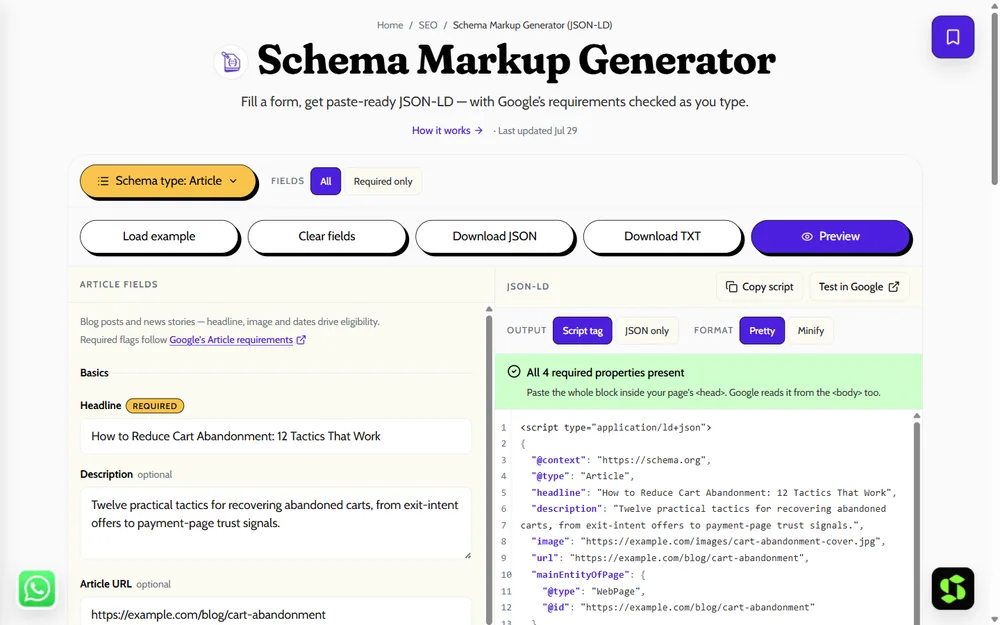
Add schema markup in minutes — generate JSON-LD, paste it in your <head>, and validate. WordPress, Shopify & custom sites.
To add schema markup: generate the JSON-LD for your content, paste it inside a <script type="application/ld+json"> tag anywhere in your page's HTML (the <head> is conventional), then validate it with Google's Rich Results Test. The whole process takes a few minutes once you know where the code goes on your specific platform. Here's the complete walkthrough — WordPress, Shopify, Wix, Webflow, custom sites, and Google Tag Manager — plus how to add schema markup without a plugin if you'd rather not install one.
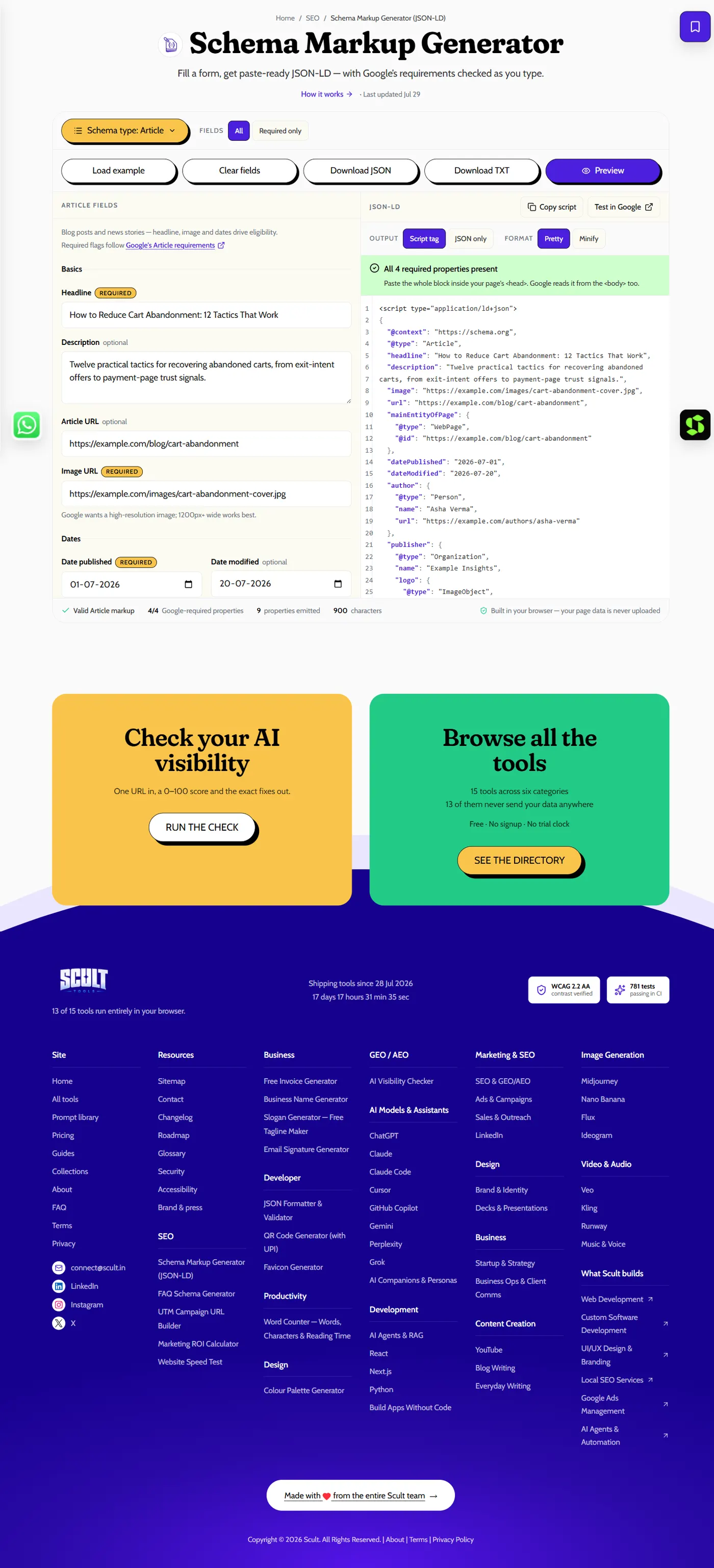
The Schema Markup Generator: pick a schema type, fill in the fields, and get paste-ready JSON-LD with Google's required properties checked off in real time.
What You Need Before You Start
Three things, and nothing more: the JSON-LD code itself (generated, not hand-typed — see Step 1), access to edit your page's HTML or a way to inject custom code (a theme editor, a plugin's custom-field, or a tag manager), and five minutes to validate the result afterward. You do not need to know how to write JSON from scratch, and you do not need a developer for most platforms.
Step 1: Generate the JSON-LD
Use the free Schema Markup Generator — pick your type (FAQ, Product, LocalBusiness, Article, and six more), fill in the fields, and copy the finished code. Generating it this way avoids the single most common failure mode with schema markup: a small JSON syntax error (a missing comma, a bracket in the wrong place) that silently invalidates the entire block. The generator's live preview updates as you type and flags any field Google's rich results actually require, so you know before you paste whether the block is complete. If you're new to the concept first, read what is schema markup for the plain-English explanation of what this code actually does.
A generated block looks like this:
<script type="application/ld+json">
{
  "@context": "https://schema.org",
  "@type": "FAQPage",
  "mainEntity": [
    {
      "@type": "Question",
      "name": "Do you offer same-day delivery?",
      "acceptedAnswer": { "@type": "Answer", "text": "Yes, within city limits for orders placed before 2 PM." }
    }
  ]
}
</script>
Step 2: Add It to Your Page
Where to put schema code: paste the whole <script> block anywhere in your page's HTML — the <head> is the conventional location, but Google reads it from the <body> just as well. What matters more than placement is that the script appears on the exact page whose content it describes; a FAQPage block only counts for the FAQ that's visibly on that same page.
<script type="application/ld+json">
{ ...your generated JSON-LD... }
</script>
WordPress
Two routes, depending on whether you'd rather use a plugin or not:
- With a plugin: most SEO plugins (Yoast, Rank Math, All in One SEO) include a custom schema/JSON-LD field per page or post — paste the generated code there and the plugin outputs it automatically on that page.
- Without a plugin: add the script via your theme's
header.php(if you're comfortable editing theme files, though this is site-wide and needs conditional logic to target one page), a lightweight code-snippets plugin scoped to a single post, or — the cleanest option for most people — through Google Tag Manager (see below), which needs no theme editing at all.
Shopify
Edit the relevant Liquid template — theme.liquid for something site-wide (like Organization schema), or a specific product/article template for page-specific schema (like Product or Article) — and paste the script directly into the template file via Online Store → Themes → Edit code.
Wix
Wix's SEO settings include a Custom Structured Data Markup field under a page's SEO settings (Settings → SEO → Advanced SEO), built specifically for pasting a JSON-LD block without touching site code.
Webflow
Add the script inside a page's Custom Code settings (Page Settings → Custom Code → footer or head code), or in the site-wide Custom Code settings under Project Settings if the schema applies everywhere.
Squarespace
Squarespace supports code injection under Settings → Advanced → Code Injection, with separate Header and Footer fields — paste the script into either.
Custom / static sites
Paste the <script> tag directly into the page's HTML source, in whichever templating system generates that page.
Via Google Tag Manager (works on almost any platform)
If your site already has GTM installed, this is often the easiest route regardless of platform: create a new Custom HTML tag, paste the JSON-LD script as the tag's content, and set a trigger so it fires only on the page(s) it applies to (a specific URL, or a set of pages matching a pattern for something like Article schema across every blog post).
Step 3: Validate
Paste your finished code — or the live page URL — into Google's Rich Results Test. It checks whether your markup is structured correctly and tells you specifically which rich result type it's eligible for, flagging any missing required property along the way. Fix anything it flags, then re-test. Once it passes, request indexing for the page in Search Console so Google recrawls it sooner rather than waiting for the next natural crawl.
For markup types the Rich Results Test doesn't cover (it dropped FAQPage-specific checking as Google phased down FAQ rich results for most sites), the generic schema.org validator confirms the JSON parses and nests correctly against the vocabulary itself, even when it can't tell you whether Google will render a rich result for it.
Common Mistakes When Adding Schema Markup
- Placing it where it never renders. A script pasted into a template that isn't actually used by the page you're testing (a common Shopify/CMS mix-up) means the validator will never find it.
- Markup that doesn't match the visible page. Schema describing a rating, price, or FAQ that isn't actually shown to visitors is a Google Search Essentials violation, not a shortcut — see does schema markup help SEO for how Google treats mismatched markup.
- Duplicate schema blocks. Adding the same Organization or Article schema twice (once via a plugin default, once manually) creates conflicting signals rather than reinforcing one.
- Forgetting to re-validate after a template change. A theme update or page rebuild can silently break where the script gets output — re-check after any structural change to the page.
- Using Microdata or RDFa instead of JSON-LD "because it was already there." It still works, but it's harder to maintain long-term — see JSON-LD vs Microdata vs RDFa for why JSON-LD is worth migrating to.
Troubleshooting Schema Markup Errors After Validating
Even correctly generated markup can run into a handful of predictable issues once it's live on the actual page:
- "The property X is not recognized" warning. This usually means a typo in a property name, or a property attached to the wrong parent type — for instance, putting
pricedirectly on an Article instead of nesting it inside anoffersobject on a Product. Re-check the generator's output against the exact field names it produced; hand-editing after the fact is where this most often creeps in. - "Missing field X" for a required property. Google's Rich Results Test flags specific properties it requires for a given rich result type — an Article missing
datePublished, or a Product missingpriceCurrency, will show up here even though the JSON itself is syntactically valid. Fill in the missing field and re-test. - The validator finds no structured data at all. This almost always means the script tag ended up somewhere the crawler didn't render — commonly a JavaScript-injected tag that never fires because of a conditional bug, or a template that isn't actually the one serving the URL you're testing. Double-check by viewing the page's source (not just the rendered DOM) for the literal
<script type="application/ld+json">tag. - Duplicate or conflicting schema blocks. If a plugin default and your manually added block both declare Organization schema with different details, Google has to reconcile two competing claims about the same entity. Pick one source of truth and disable or remove the other.
- The rich result validates but never appears in search. Passing validation confirms eligibility, not that Google will choose to show the enhancement — it also weighs page quality and query relevance, and can take days to weeks to recrawl and apply a new rich result even on markup that's been correct the whole time.
Maintaining Schema Markup Over Time
Schema markup isn't a one-time task you can forget about once it validates. Prices change, products go out of stock, articles get updated, FAQ answers get revised — and stale schema (a price that's wrong, an "in stock" claim for something that's sold out) actively damages the trust a rich result is supposed to build. Whenever you update the visible content a schema block describes, update the corresponding JSON-LD in the same pass. If your schema is generated dynamically from the same data source that populates the visible page (a product's price field, for example), this happens automatically; if it was hand-pasted once and forgotten, it's worth an occasional audit — re-run key pages through the Rich Results Test every few months, especially after a theme update, a CMS migration, or any change to how your pages are templated, since any of those can silently break where the script gets output without changing anything visible.
How to Add Schema Markup Without a Plugin
If you'd rather not add another plugin to your site, you have three no-plugin routes covered above: Google Tag Manager (works on nearly any platform and needs no code changes to your actual templates), direct template editing (Shopify's Liquid files, a static site's HTML, or a custom CMS's page templates), or your platform's native code-injection settings (Wix's Advanced SEO panel, Webflow's Custom Code settings, Squarespace's Code Injection) — all three exist specifically so schema and other custom code can be added without installing anything.
Schema Markup for Multi-Language and Multi-Region Sites
If your site serves multiple languages or regions from separate URLs (/en/, /in/, or separate hreflang-tagged domains), each localized page needs its own schema block reflecting that page's actual content and locale — a price in the correct local currency, a business address matching that region, an inLanguage property set correctly where relevant. Copying one page's JSON-LD verbatim across every language variant without updating the locale-specific fields is a common mistake: the markup will still validate structurally, but it will describe the wrong currency, address, or availability for readers actually landing on that regional page, which undermines exactly the trust and accuracy the schema is meant to build.
A Pre-Publish Testing Checklist
Before considering a schema implementation finished, confirm: the Rich Results Test passes with no errors for the specific type you're targeting; every fact in the JSON-LD matches what's actually visible on the page (no invisible ratings, no FAQ answers that don't appear in the page's visible text); the script tag appears in the page's actual HTML source, not just in a template that isn't live yet; there's exactly one schema block per type per page (no accidental duplicates from a plugin default plus a manual addition); and, for any type with region- or currency-specific fields, those fields match the page's actual locale. Running through this list takes a few minutes and catches the overwhelming majority of issues before they become a Search Console warning.
What Happens After You Add Schema Markup: A Realistic Timeline
Right after publishing, validation is instant — the Rich Results Test reflects your live markup as soon as the page is accessible. What isn't instant is Google actually recrawling the page and deciding whether to display a rich result: that can range from a few days (especially if you request indexing in Search Console right after publishing) to several weeks for lower-priority pages Google crawls less frequently. Even once recrawled, eligibility doesn't guarantee display — Google separately weighs page quality and query relevance before choosing to show the enhancement. Setting this expectation up front avoids the common frustration of checking a page the day after adding schema and concluding it "didn't work" when nothing has actually failed — it simply hasn't been reprocessed yet.
What to Do If You Manage Multiple Sites
Agencies and in-house teams juggling several sites benefit from standardizing on one schema-generation workflow across all of them, rather than letting each site's webmaster pick a different tool or approach independently. A shared checklist (generate with one tool, add via one preferred method per platform, validate with the same Rich Results Test step every time) keeps quality consistent and makes onboarding a new site or a new team member considerably faster than re-deriving the process from scratch each time.
Automating Schema Markup at Scale
Adding schema by hand, page by page, works fine for a handful of pages but breaks down once you're managing hundreds — a product catalog, a large blog archive, or a multi-location business directory. At that scale, the sustainable approach is templating schema directly from the same data source that already populates the visible page: a product template that pulls name, price, and availability from your product database can generate matching JSON-LD automatically from those same fields, rather than requiring someone to manually re-enter the same facts into a generator for every single page. This is exactly how most modern e-commerce platforms and CMS themes handle Product and Article schema by default — and it's the reason keeping schema in sync with visible content stops being a manual maintenance burden once it's set up this way.
Choosing Between a Plugin, Tag Manager, and Manual Code
Three legitimate ways to add schema markup exist, and which one fits depends on your situation rather than one being universally best. A plugin's built-in field (Yoast, Rank Math on WordPress) is the fastest route if you're already using that plugin for other SEO tasks and don't want another tool in your stack — the tradeoff is being somewhat limited to whatever schema types and fields the plugin exposes. Google Tag Manager is the most flexible option across platforms and doesn't require touching your actual page templates, but it does mean your schema now lives in a separate system from your content, which some teams find harder to keep in sync during content updates. Direct template editing gives you full control and keeps schema colocated with the content it describes, but requires comfort editing theme or template files and carries the most risk of a small mistake affecting page rendering if you're not careful. For a single page or two, any of the three works fine; for site-wide schema across hundreds of pages, tying it to your CMS's own data (so Product schema is generated automatically from the same price field that displays on the page) scales far better than manually maintaining separate JSON-LD per page.
Frequently Asked Questions
Where do I put schema markup code?
Inside a <script type="application/ld+json"> tag anywhere in your page's HTML — the <head> is conventional, but Google reads it from the <body> too. What matters is that it's on the page it describes.
How do I add schema markup in WordPress without coding?
Use an SEO plugin's custom JSON-LD field (Yoast, Rank Math, and All in One SEO all support this), or a lightweight code-snippets plugin — paste the generated code, no PHP editing required.
How do I add schema markup without a plugin?
Use Google Tag Manager's Custom HTML tag, edit your theme/template file directly, or use your platform's built-in code-injection settings (available natively on Wix, Webflow, and Squarespace).
How do I know my schema markup is working?
Validate it with Google's Rich Results Test — it confirms whether the markup is structured correctly and which rich result type it qualifies for, and flags anything missing.
Do I need a plugin to add schema markup?
No — you can paste JSON-LD directly via Google Tag Manager, your theme's code, or your platform's code-injection settings. A plugin just makes it more convenient on WordPress specifically.
Can I add more than one schema type to the same page?
Yes. Multiple <script type="application/ld+json"> blocks on one page are completely valid — an article page commonly carries Article, BreadcrumbList, and Organization schema side by side.
Why did my schema markup not show up in search results after validating correctly?
Passing validation only confirms eligibility, not that Google will display a rich result. Google also weighs page quality, per-query relevance, and can take days to weeks to recrawl and apply a new rich result even on markup that validates cleanly.
Does adding schema markup require a developer?
Not for most cases. Between a schema generator, your CMS's built-in fields, and no-code platforms' native code-injection settings, most site owners can add valid schema markup without writing code themselves.
How often should I re-check my schema markup after it's live?
Whenever the underlying content changes (a price, a product's stock status, an updated FAQ answer), and as a periodic habit after any theme update, CMS migration, or template change, since those can silently break where the script gets output.
What's the most common reason schema markup fails validation?
A missing required property for the specific rich result type you're targeting (like priceCurrency on a Product, or datePublished on an Article) — the Rich Results Test flags these explicitly, and they're the easiest class of error to fix once identified.
Should schema markup be added manually or generated automatically from my CMS data?
Manually for a handful of pages is fine; for anything at real scale (a large catalog, a growing blog archive), templating schema from the same data fields that already populate the visible page is far more sustainable, since it keeps the markup accurate automatically whenever the underlying content changes.
What's the difference between adding schema via a plugin versus Google Tag Manager?
A plugin ties the schema directly to the content it describes within your CMS, which stays in sync automatically as you edit that content. Tag Manager keeps schema in a separate system, offering more cross-platform flexibility but requiring you to remember to update it separately if the underlying content changes.
Can I add schema markup to a page that's already ranking well?
Yes, and it's worth doing — an already-ranking page gains the same rich-result eligibility and AI-citation clarity as any other page. Schema doesn't require a page to be new or freshly published to benefit from it.
Is it safe to copy another site's schema markup and adapt it for mine?
The structure and format are fine to learn from, but never copy the actual facts (names, prices, ratings) — every value in your JSON-LD needs to match your own page's genuine, visible content, not a template inherited from somewhere else.
Want structured data rolled out across your whole site — correctly, and validated? Talk to Scult's SEO team.