A complete, prioritised guide to speeding up your website — images, caching, fonts, JS, hosting — with expected impact.
The fastest, most reliable wins for a genuinely slow website are: compress and correctly size every image, enable both caching and a CDN, defer non-critical JavaScript, and use properly resourced, good hosting. Together, these four specific fixes genuinely resolve the underlying loading-speed problem for the overwhelming majority of slow sites out there. Here's the complete, detailed guide to genuinely speeding up your specific website, presented in the exact order that reliably produces the fastest, most measurable, most durable results for the overwhelming majority of sites.
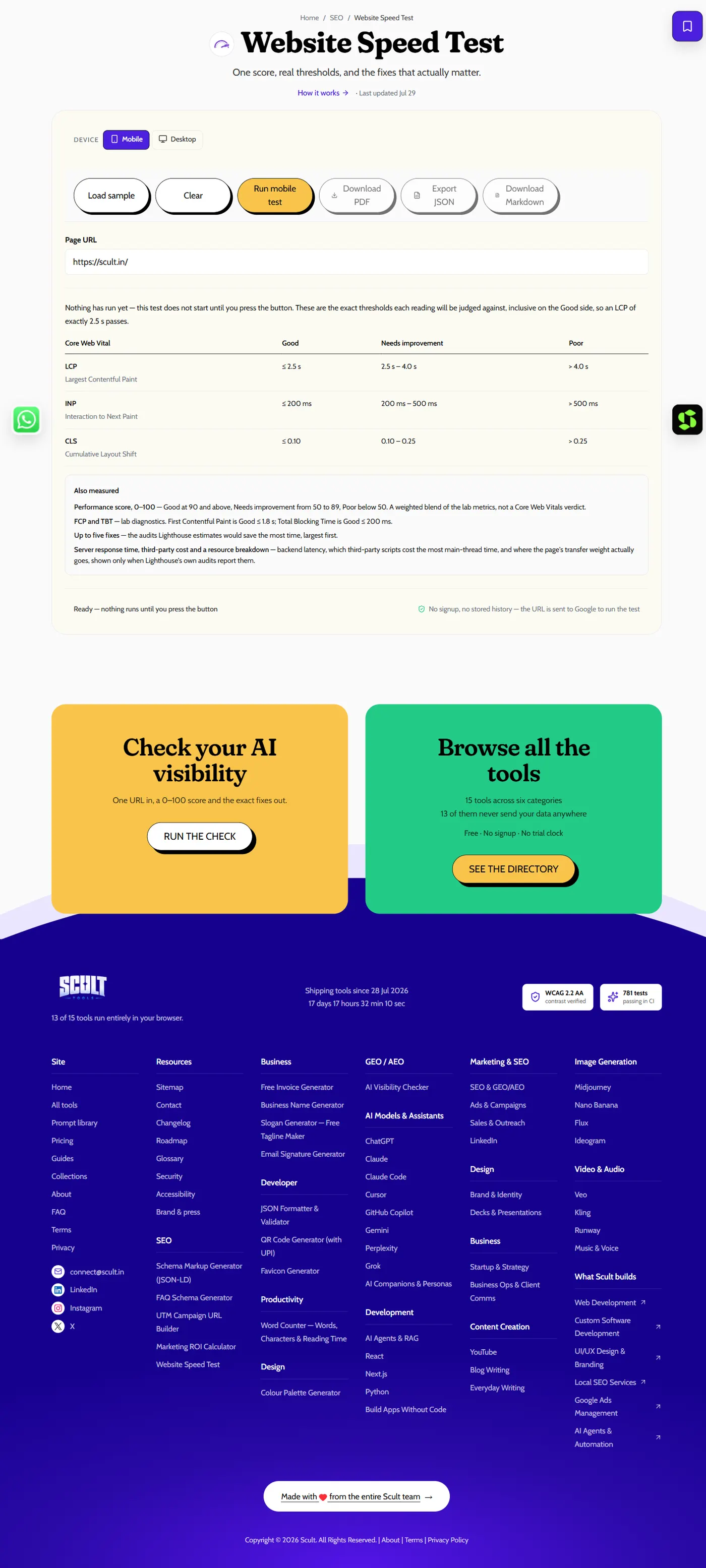
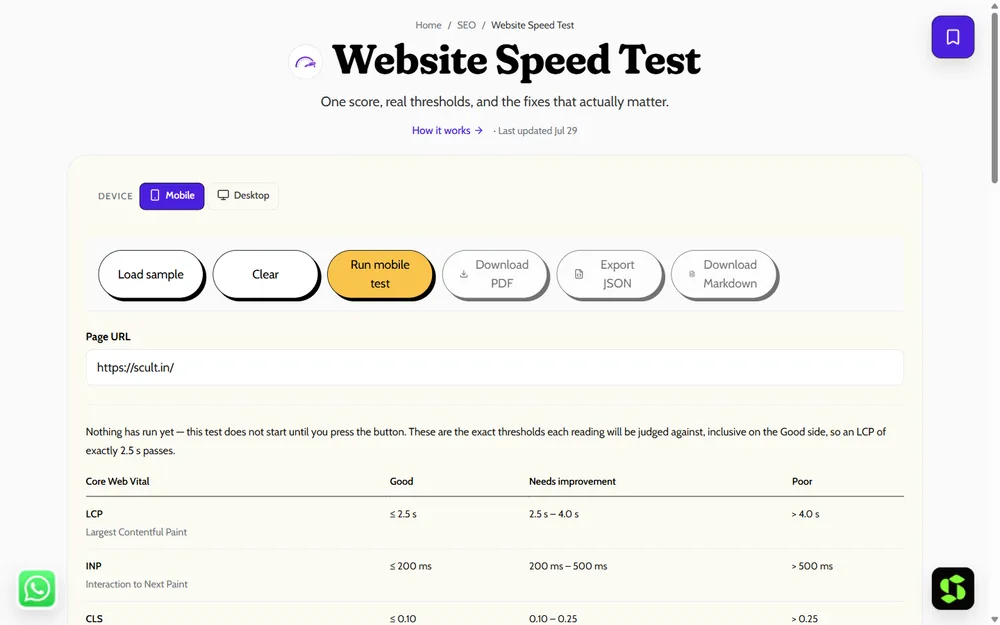
The Website Speed Test: enter a URL, choose mobile or desktop, and see each Core Web Vital judged against Google's actual Good / Needs Improvement / Poor thresholds.
Why a Systematic, Genuinely Prioritized Approach Reliably Beats Random Fixes
It's tempting to fix whatever performance issue is most visible or most recently complained about, but a genuinely effective speed optimization process works from actual data, in a consistent order, rather than reacting to whichever problem is loudest at the moment. The steps below are ordered specifically by typical impact-to-effort ratio — the changes that reliably produce the largest improvement for the least implementation effort come first, with progressively more specialized or resource-intensive fixes following.
Step 1: Measure First, Before Changing Anything at All
Run the free Website Speed Test to see your current, actual score and, specifically, which individual Core Web Vital is genuinely performing worst on your site. Fixing the single biggest, most impactful problem first — rather than attempting to fix everything simultaneously all at once — produces genuinely measurable results faster and makes it possible to confirm each individual change actually worked as intended, rather than changing five different things at once and being completely unable to tell which specific one actually mattered.
A Worked Example: Applying These Steps to a Real Site
Say a small business site scores "poor" on LCP (4.2s) and "needs improvement" on CLS (0.15), with INP already "good." Working through the priority order: Step 2 (images) reveals a 2.8MB uncompressed hero photo — compressing and converting it to WebP alone drops LCP to roughly 2.8s. Step 3 (caching) wasn't previously enabled at all; turning it on for repeat visits and adding a CDN brings LCP down further to around 2.3s, now in the "good" range. For CLS, Step 7 (explicit image dimensions) reveals three product images without set width/height attributes — adding them resolves the layout shift, bringing CLS to 0.06. Two of the five available steps, applied specifically where the diagnostic data pointed, fully resolved both flagged metrics.
Step 2: Fix Your Images — Usually the Single Biggest Culprit
Images are the most common cause of slow loading, and the fix is genuinely straightforward: compress every image without visibly degrading quality, serve modern formats (WebP or AVIF) instead of older JPEG/PNG where supported, and size images correctly for where they're actually displayed — never load a 3000-pixel-wide image into a 400-pixel slot and let the browser scale it down, which wastes bandwidth and time for no visual benefit. Additionally, lazy-load images below the visible fold (so they don't compete for bandwidth with what the visitor sees first) and preload the specific hero image that determines your LCP score, so it starts loading immediately rather than waiting in a queue behind less important assets.
Step 3: Enable Caching and a CDN
Turn on both browser caching (so a repeat visitor's browser reuses previously downloaded assets instead of re-fetching them) and server-side caching (so your server doesn't rebuild the same page from scratch for every single visitor). Layer a CDN (Content Delivery Network) on top, which serves your static assets — images, CSS, JavaScript — from a server physically closer to each visitor, cutting the network travel time that otherwise adds up especially for visitors far from your primary server's location.
A Note on Modern Image Formats and Browser Support
WebP is now broadly supported across all modern browsers, making it a safe default choice for most sites; AVIF offers even better compression in many cases but has slightly less universal support, particularly on older devices and browsers still in use across some markets. A safe, low-risk approach: serve AVIF or WebP with a JPEG/PNG fallback using the HTML <picture> element, so modern browsers get the smaller, more efficient file while older browsers still receive a working image rather than a broken one.
Step 4: Reduce and Defer JavaScript
Audit your site for unused scripts and heavy third-party widgets — chat widgets, analytics trackers, and social embeds are common, often-forgotten culprits that quietly load a meaningful amount of extra JavaScript on every single page. Defer loading of non-critical JavaScript so it doesn't block the initial render, and minify both CSS and JavaScript files to strip unnecessary whitespace and comments that add to file size without adding any function.
Understanding the Trade-Off Between Image Quality and File Size
Image compression always involves some trade-off between visual fidelity and file size, but for the overwhelming majority of web use cases, that trade-off is far more forgiving than people assume — a well-compressed JPEG or WebP at 80-85% quality is visually indistinguishable from the uncompressed original on virtually any screen, while being a fraction of the file size. The mistake to avoid is over-compressing to the point of visible artifacts (blurring, color banding) purely chasing a smaller file size number — the goal is the smallest file size that still looks genuinely good, not the smallest file size possible regardless of appearance.
Step 5: Optimize Fonts
Preload your key fonts (the ones used above the fold) so they're prioritized early in the loading sequence, and use font-display: swap in your CSS so text remains visible using a fallback font while your custom font loads, rather than staying invisible and then suddenly shifting layout once the custom font arrives. Limit how many font weights and font families you actually load — each additional weight or family is a separate file the browser has to fetch.
How to Know When You've Optimized "Enough"
There's a point of genuinely diminishing returns in speed optimization, and recognizing it prevents endless, low-value tweaking. Once all three Core Web Vitals sit comfortably in the "good" range with some margin (not just barely passing), further optimization effort typically produces smaller and smaller improvements for the same time investment — a good signal to redirect that effort toward content, conversion rate, or other priorities instead, rather than continuing to chase marginal speed gains indefinitely.
Step 6: Upgrade Your Hosting and Reduce Server Response Time (TTFB)
Cheap, shared hosting is a frequently overlooked and surprisingly common cause of slow sites — if your Time to First Byte (TTFB, the time before your server even starts sending back the page) is high, no amount of front-end optimization fully compensates for a slow server response. Better, more appropriately-resourced hosting directly lowers TTFB. Keep your server software (PHP version, database, caching layer) current and properly configured rather than running on outdated defaults.
Step 7: Reduce Layout Shift (CLS)
Explicitly set width and height attributes on every image and embedded element so the browser reserves the correct space before the content finishes loading, preventing the rest of the page from jumping around it. Reserve space for ad slots and dynamically injected content the same way, rather than letting them push existing content down unexpectedly once they load.
A Realistic Timeline for Each Step
Image optimization typically takes an afternoon for a small-to-medium site using a bulk compression tool; caching and CDN setup usually takes under an hour if using a managed plugin or hosting-provided option; JavaScript auditing and deferral can take anywhere from a few hours to several days depending on how much custom or third-party code is involved; font optimization is typically a quick, same-day change; and a hosting migration, if genuinely needed, can take anywhere from a day to a couple of weeks depending on site complexity and whether a developer needs to handle the migration carefully to avoid downtime.
Priority Order: What to Fix First
- Images — usually the fastest, highest-impact fix, and the easiest to do without developer help.
- Caching and CDN — a close second, often just as fast to implement and just as impactful.
- JavaScript — a bigger, more technical undertaking, but worth prioritizing once images and caching are handled.
- Fonts — smaller impact individually, but easy to combine with the JavaScript pass.
- Hosting — the deepest, often costliest fix, but sometimes the only way past a hard ceiling the other four fixes can't overcome.
Re-test with the speed test after each individual change, so you can confirm exactly which fix produced which improvement rather than changing everything at once and losing that information.
Speed Optimization for Different Types of Sites
E-commerce stores benefit disproportionately from image optimization (product photography is often the single heaviest asset category) and app/plugin auditing (reviews, upsells, and recommendation widgets accumulate quickly). Content and blog sites benefit most from image lazy-loading (long, image-heavy articles) and font optimization (heavier typography choices common in editorial design). SaaS marketing sites often see the biggest gains from JavaScript reduction, since marketing sites frequently accumulate tracking pixels, chat widgets, and A/B testing scripts that a content-focused site wouldn't carry.
Tools That Help Beyond the Basic Speed Test
Beyond an initial diagnostic speed test, a few specialized tools help with specific steps above: an image compression tool (many offer bulk processing for an entire media library at once) for Step 2; your CDN provider's own dashboard for confirming cache hit rates for Step 3; Chrome DevTools' Coverage panel for identifying genuinely unused CSS and JavaScript for Step 4; and Google Fonts' own loading-strategy documentation for Step 5's font-display settings. Reaching for the right specialized tool at each step is faster than trying to solve every step with one general-purpose tool alone.
Quick Wins vs. Deeper Fixes
The quick wins — image compression, enabling caching, and setting image dimensions to prevent layout shift — genuinely fix most sites' most visible problems fast, often without needing a developer at all. The deeper issues — heavy custom JavaScript, a fundamentally under-resourced hosting plan, or a bloated theme/page-builder baked into your site's architecture — usually require more substantial developer involvement, and it's worth being honest about that distinction rather than expecting a plugin alone to fix a structural problem.
How to Prioritize These Steps When You Have Limited Time
If you can only tackle one or two of the steps above right now, prioritize based on your speed test's specific findings rather than working strictly through the list in order — a site with a severe LCP problem driven by an unoptimized hero image gets more value from Step 2 (images) than from Step 5 (fonts), even though fonts appear earlier in a generic priority list. Let your specific diagnostic data, not a one-size-fits-all checklist, decide where you personally start.
Measuring the Real-World Impact of Each Fix
Beyond the abstract Core Web Vitals score, it's worth connecting speed improvements to business metrics that actually matter — bounce rate, conversion rate, and average session duration, all trackable in your analytics platform. A speed test score moving from "poor" to "good" is a meaningful technical achievement, but confirming it also moved bounce rate or conversion rate in the right direction is what proves the work actually mattered to your business outcomes, not just to a diagnostic tool.
Common Mistakes When Trying to Improve Website Speed
- Installing multiple caching plugins simultaneously, which frequently conflict with each other and can make performance worse rather than better.
- Compressing images so aggressively that visible quality degrades, trading a barely-noticeable speed gain for a genuinely worse visual experience.
- Deferring JavaScript that's actually required for the initial render, breaking page functionality in the name of a speed score.
- Chasing a perfect 100 score well past the point of diminishing returns, at the cost of time better spent on other priorities.
- Making several changes simultaneously and losing the ability to attribute a specific improvement (or regression) to any single one of them.
Balancing Speed With Design and Functionality Goals
It's worth acknowledging directly that speed optimization sometimes pulls against other legitimate goals — a marketing team wanting a large, visually striking hero video, or a product team wanting rich interactive filtering, both add weight that works against speed. The right approach isn't to reflexively sacrifice every ambitious feature for a marginal speed gain, but to make each trade-off deliberately: is this specific feature worth its measured performance cost, and is there a lighter-weight way to achieve a similar effect? Treating speed as one input among several deliberate design and product decisions, rather than an absolute constraint overriding everything else, produces better outcomes than either extreme.
Speed Optimization Is an Ongoing Process, Not a One-Time Project
Every new plugin, every content update with fresh images, every new third-party embed added over time can quietly erode the gains from a previous optimization pass. Treating speed as a maintained, ongoing discipline — checked periodically, not fixed once and forgotten — is what keeps a site fast for the long term rather than slowly drifting back toward the same problems that prompted the original optimization effort.
Setting Up Ongoing Monitoring So Problems Don't Recur
Beyond the initial optimization pass, setting up basic ongoing monitoring — a monthly calendar reminder to re-run the speed test, or an automated alert if a monitoring tool detects a significant regression — prevents the slow, gradual re-accumulation of the same problems this guide just walked through fixing. Sites that treat speed as a one-time project rather than an ongoing discipline reliably drift back toward their previous, slower state within six to twelve months, as new content, plugins, and third-party scripts accumulate without anyone specifically checking their cumulative performance cost.
The Bottom Line
Speeding up a genuinely slow website is a systematic, learnable process, not a mysterious art — measure first, fix in priority order, re-test after each change, and treat the whole effort as an ongoing discipline rather than a single one-time project.
Frequently Asked Questions
What slows a website down the most?
Large, unoptimized images are the single most common cause, followed by missing caching, heavy JavaScript (especially third-party widgets), and slow or under-resourced hosting.
How can I speed up my website for free?
Compress and correctly size your images, enable browser and server caching, defer non-critical scripts, and remove unused plugins or third-party widgets — all achievable without paid tools in most cases.
How do I test my website speed?
Use the free Website Speed Test — it checks your Core Web Vitals directly and highlights your biggest specific opportunities for improvement.
Do I need a developer to speed up my website?
Not always — image compression, caching plugins, and basic optimization are achievable without one. Heavier issues like custom JavaScript, hosting migrations, or theme rebuilds typically do need developer help.
How long does it take to see results after making these changes?
Image and caching fixes often show measurable improvement within the same day; hosting or JavaScript changes may take longer to implement but similarly show results as soon as they're live.
Should I fix all of these at once or one at a time?
One at a time, in priority order — this lets you confirm each individual fix's actual impact using a re-test, rather than changing several things simultaneously and being unable to tell which one mattered.
Will improving website speed also improve my SEO rankings?
It can help indirectly, mainly through better engagement metrics (lower bounce rate, longer sessions) and the Core Web Vitals ranking signal, though content quality and relevance remain the larger, more direct ranking factors.
How much does it typically cost to speed up a website?
Costs vary widely — image optimization and caching are often free or low-cost using existing plugins; a hosting upgrade or a developer-led rebuild of heavy custom code represents a larger, but often one-time, investment.
Can I speed up my website myself without any technical background?
Many of the steps (image compression, enabling a caching plugin) are accessible without coding knowledge; JavaScript optimization and hosting migrations typically benefit from at least some technical familiarity or professional help.
What's a realistic speed target for a small business website?
Aiming for "good" Core Web Vitals across all three metrics (LCP under 2.5s, INP under 200ms, CLS under 0.1) is a realistic, achievable target for most small business sites without requiring extensive custom engineering.
Does using a website builder (rather than custom code) limit how fast my site can be?
It can impose some limits, since builders often generate more code than a hand-built page for the same visual result — but most builders still support meaningful optimization through image compression, caching settings, and careful feature selection.
Can I measure the exact business impact of a speed improvement I've made?
Yes — compare bounce rate, session duration, and conversion rate for a comparable time period before and after the change in your analytics platform, ideally isolating the speed change from other simultaneous changes so the comparison stays clean and attributable.
Is it worth paying for a premium CDN, or do free options work well enough?
Free CDN options bundled with many hosting plans work adequately for most small-to-medium sites; a premium, dedicated CDN typically becomes worth the added cost once a site has meaningful international traffic or very high overall traffic volume that benefits from more advanced routing and edge caching.
What happens if I skip Step 6 (hosting) and only do the other steps?
You'll likely see genuine improvement, but a slow, under-resourced server puts a hard ceiling on how much the other five steps alone can achieve — hosting is often the difference between "good" and merely "needs improvement" for sites that have already optimized everything else.
Can a mobile app version of my site have separate speed considerations from the website?
Yes — a native mobile app and a mobile website are technically distinct, with different performance characteristics and optimization techniques, though Core Web Vitals specifically apply only to web pages, not native app screens.
Want it done for you, properly, instead of guessing at plugins? Scult fixes site speed and rebuilds slow sites.